Tuesday, November 24, 2020

How to Recover Deleted Contacts on iPhone 12/11/XS/XR/X

Summary: after IOS 14 is updated, iPhone 8 has lost its contacts? Under IOS 14 operating system, some contacts on iPhone X are accidentally deleted? Contacts in IOS 14 disappear from iPhone? Don't be frustrated. Through the following tutorial, you can retrieve the lost contacts on new IOS devices.

Unfortunately, notice that all contacts in your phone book disappear after an error is deleted on your iPhone? Or do you lose your iPhone contacts due to IOS upgrade / prison break, formatting or device theft? No matter what happens on your iPhone, what you care about is whether there is a way to recover the lost iPhone contacts? In fact, use the correct recovery tools, such as the number of iPhones According to the recovery, this is a simple job.

Direct recovery of deleted contacts on iPhone 12 / 11 / XS / XR / X / 8

IPhone data recovery has always been a lifesaver for iPhone users. It allows you to extract and recover deleted contacts from iPhone as. CSV,. VCard,. HTML format and save them to the computer easily. In addition, the iPhone contact recovery function allows users to directly restore contacts to iPhone and iPad devices. In addition, iPhone data recovery can also help you recover photos, videos, SMS, notes, call logs, WhatsApp SMS, etc. in the three recovery modes of iPhone 12 / 11 / XS / XR / X / 8. Here is a description of how to perform iPhone data recovery. Now read and retrieve lost contacts from iPhone 12, iPhone 11, iPhone XS, iPhone XR, iPhone 8, iPhone 7, iPhone 6S, iPhone 6, iPhone 5S and iPad Pro / air 2 / MINI 4.


How to Recover Lost Data from iPhone

iPhone/iPad/iPod Data Recovery support 3 recovery mode to recover file in 22+ format, selectively browse and recover lost or deleted data from iOS devices, iCloud backup and iTunes backup due to deletion, device crashed, smashed or broken, jailbreak, iOS upgrade or device reset etc.


Step 1. Run the Program and Connect iOS devices to PC

Download the ios data recovery and install it on your computer. Then connect the iPhone/iPad/iPod device to PC.


Step 2. Select the File to Recover

Connect your iOS device to computer. Enter scan mode following the instruction. After scanning, all the files in your device will be shown and classified into categories. Find the file you want to recover under specific category.
The iOS Data Recovery supports 20+ data types, including WhatsApp, WeChat, Kik, photos, messages, contacts, notes and more.


Step 3. Select Destination and start to Recover

Click "…" button and select the file folder to save the recovered data. All preparations been done, you can start the recovery immediately by clicking "Recover".


Recover Lost/Deleted Photos and Videos on iOS Devices

Click "Camera Roll", "Photo Stream" and "Picture Library" in the left column to preview found images. Check those items you want and click "Recover" to save them on your computer.


Recover Deleted/Lost Contacts from iPhone Directly

Select "Contacts" in the left panel and your contacts list will be displayed in the right panel. You can choose one item to see the detailed information. The lost/deleted contacts will be displayed in red. You can turn on toggle switch to only display the deleted item(s). Check the lost/deleted items you want to recover, select CSV, HTML or VCF format you want to save your contacts list as, and then click "Recover" button to start the process.


Recover Deleted Text Messages from iPhone without Backup

After the scan process is finished. The scan result will list in the left sidebar grouped by file types. Click "Messages" item from the sidebar to preview details. Check those lost and deleted text messages you want to get back and click "Recover" button to save these lost messages on your computer as CSV, HTML format.


Tip: Check "Only display deleted item", only deleted or lost files will be displayed. This helps you quickly find the target file.



How to Transfer Android Data to Samsung

[Summary]: we will provide you with simple and effective data transmission methods, including address book, SMS, photos, videos, call records, music, applications, bookmarks, calendars, etc., to transfer all Android phone data to Samsung.

With the increase of Android users, many people are looking for solutions to transfer data between smart phones. Some Android users turn their eyes to the latest version of Samsung. When they switch to a new device, the most important thing is to copy the photos from the old Android phone to the new one. I don't believe anyone would like to move them one by one via Bluetooth or email. Here, we are going to discuss how to easily transfer photos from Android to Samsung Galaxy S20 / S11 / note 20 / Note 10.

Transfer Android data to Samsung through Android data switch

The best solution for transferring data between Android and Samsung phones is to turn to the Android data switch. In fact, compared with Bluetooth, Android data switch is highly recommended for mobile phone users because it can easily transfer all the information on Android phones to Samsung / Android phones without taking time, including contacts, SMS, photos, videos, music, calendar, call logs and applications. In addition to transferring data between two mobile devices, it allows you to back up and restore phone data and helps you completely delete data from your phone. It is suitable for almost all Android models, including Samsung, HTC, Lenovo, LG, Motorola, Google pixel, Huawei, HTC, oppo, vivo, Xiaomi, etc.


How to Transfer Data from Android to Android

Step 1. Launch Mobile Transfer and select transfer mode

Download, install and launch Mobile Transfer software on the computer. When you see the interface as below, select "Phone to Phone Transfer".


Step 2. Connect both Android to the Computer

Connect two Android mobile phones to your computer. The program will recognized and detected your devices automatically and show as source phone and Destination as below image. You can click "Flip" to change the place of two phones.


Step 3. Transfer Data from Android to Android

From the box in the middle items, you can choice and mark the data type which you want to transfer. Then click "Start Copy" button to start transferring data. Patiently waiting for the transfer process, and check the data that has been transmitted on your destination phone.


Not only transfer data from Android to Android, you can also follow the similar way to transfer your data between iOS and Android, and transfer files from Android to Symbian devices with ease.

Monday, November 23, 2020

How to Permanently Delete Data from Samsung Phone and Tablet

"I know that even if you delete text messages, they are still on your phone and you just need to find them. I've looked through the menu, but I still can't see it. Can you help me? I'm using the Samsung Galaxy S9. Thank you

Whatever the reason you want to erase your Samsung phone. In this article, we will show you how to use the guide to completely clear all content and settings from your Samsung phone or tablet without restoring simple methods. Any of them can delete your personal contact information, text messages, photos, call logs without having to recover them.

Completely delete Samsung data and guarantee that it will not be recovered

We suggest that you use Android data eraser to permanently clear all data and settings on Samsung phones, such as Samsung Galaxy S20 / S11 / S10 / S9 / S8, HTC, LG, ZTE, nexus, Lenovo, etc. Support the deletion of almost all popular files, including SMS, photos, contacts, videos, call logs, documents, audio files, WhatsApp history. Android data eraser is trustworthy to make work more efficient.

Download Win Download Mac

How to Deleted Data from Android Permanently

Step 1. Connect Your Android Phone

Launch dr.fone on your computer. Select "Erase" among all the tools.

Connect your Android phone to computer using a USB cable. Make sure you have enabled USB debugging on your phone. If the Android os version is above 4.2.2, there will be a pop-up message on your phone asking you to allow USB debugging. Tap on "OK" to continue.

Step 2. Start Erasing Your Android Phone

Then dr.fone will automatically recognize and connect your Android device. Click on the "Erase All Data" button to start erasing all your data.

Since all the erased data are not recoverable, make sure you have backed up all needed data before you proceeding. Then key in “delete” in to box to confirm your operation.

Then dr.fone will start erasing all data on your Android phone. The whole process takes only a few minutes. Please don't disconnect the phone or open any other phone management software on the computer.

Step 3. Perform Factory Data Reset on Your Phone

After all app data, photos, and all other privacy data have been completely erased, dr.fone will ask you to tap on Fatory Data Reset or Erase All Data on the phone. This will help you completely wipe all the settings on the phone.

Now your Android phone has been completely wiped and it's like a brand new one.


Download Win Download Mac

How to Recover Lost Data from Android with Black Screen

"Hey guys, I was taking pictures today, and suddenly my Galaxy S6 went into a black screen crash. Even if it was restarted, it would not automatically repair." My mobile phone is the Samsung Galaxy S6. --- Lili

Black screen is one of the reasons for Android data loss. If your Android device goes black or bad, you may be more concerned about the important data you store on your phone than the device itself, especially the thousands of memorable photos. In this case, if you want to retrieve the lost photos, Android fault data recovery tool is indispensable.

Samsung black screen crash - how to repair black screen and restore data

Broken Android data extraction allows you to fix a lot of bad situations. It can not only fix the black screen of Samsung Galaxy S / note, but also fix the crash or crash of your Samsung device. It is worth noting that this powerful program can restore Samsung's functions of contacts, SMS, call logs, WhatsApp, photos, videos, music, etc. Broken Android data extraction is suitable for Samsung Galaxy note 3 / 4 / 5 and Samsung Galaxy S4 / S5 / S6 mobile phone users.


Recover Data From Android Phone by Android data Recovery

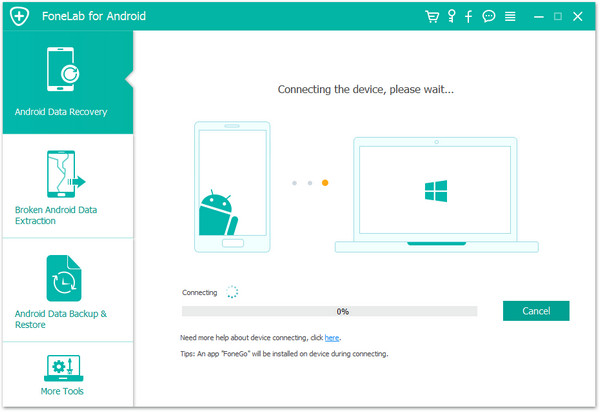
Step 1: First of all, free download and install the program on your computer with above link. Then the program will automatically launch when it is finished. Choose Broken Android Phone Data Extraction on the left of the interface.

Step 2: Connect your vivo phone to the computer with a USB cable. Click Start if your Android device stays in broken screen, black screen or non-responsive screen, you cannot enter password or cannot touch the screen. Otherwise click Fix Device if the system of your Android device is damaged, and you cannot operate it. Here you should choose Fix Device.


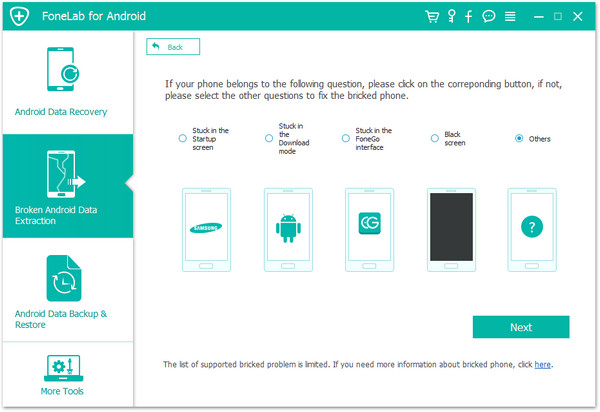
Step 3: Choose the situation that your phone is facing with: Stuck in Startup screen, Stuck in the Download mode, Stuck in the FoneGo interface, Black screen and so on. Click Next to move on.


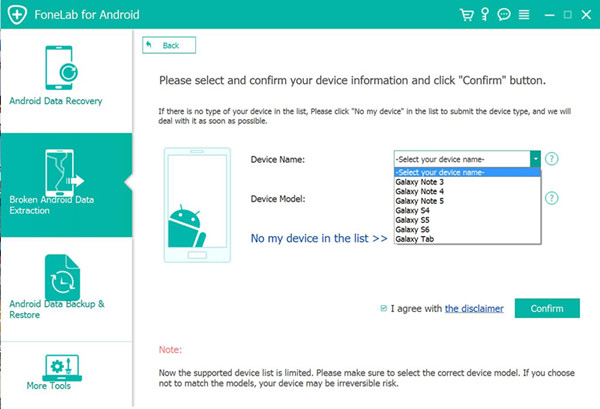
Step 4: Make sure that you choose the correct information of your Android device including the device name and device model. Then click Confirm to move on.


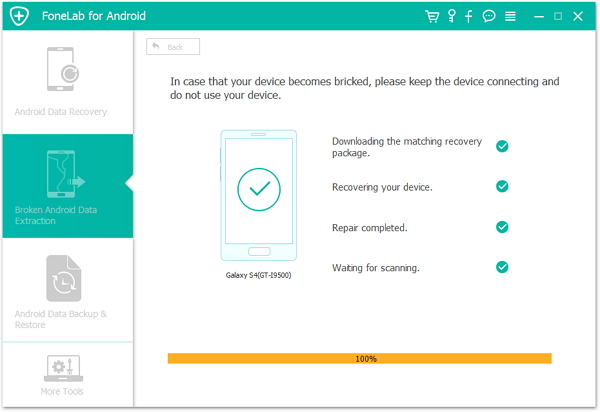
Step 5: The program will download recovery package and then repair the frozen Android system. After it is done, you can navigate to Android Data Recovery feature to access and scan your Android data, including the deleted files.


Step 6: Check Messages and Message Attachment on the left pane to view details and mark the items you want to recover and click Recover to save them onto your computer.


With the help of this software, you can get Android photos off a frozen phone, recover data from dead phone and so on. Why not get it on your PC now?


Monday, November 16, 2020

Recover Data From Android by Android data Recovery

"Help, thanks! I did a factory reset on my Android phone after accidentally pressing the factory reset option. And then I found that all my contacts and other content disappeared. I didn't make a backup. How can I recover lost contact from factory reset Android? "

Factory data reset can help fix most of the problems that happen on Android. The master reset function can clear all data (address book, SMS, call record, photo, picture, app, etc.) on Android phone, and the device will automatically restore to its original state.

After the factory reset, the recovered Android data is not backed up

After the factory reset Android, how to retrieve the lost files? In this case, you need a third-party data rescue software. We recommend Android data recovery. It can restore data after resetting Android phones and tablets to factory settings. It can recover the lost, deleted or formatted data of your Android phone's internal storage and external memory card, such as Samsung, HTC, Google pixel, nexus, Motorola, Sony, LG, Lenovo, Huawei, etc. These recoverable data include your contacts, text information, call history, gallery and photos, video, audio and music files, files, etc.


Recover Data From Android by Android data Recovery

Step 1.Connect Android to Computer

Firstly please download Android Data Recovery,then launch it on your computer,run it and connect Android to PC using an USB.


Step 2.Open the USB Debugging on Android

Here is the right methods to open USB debugging on Android steps:

1) For Android 4.2 or newer: Enter “Settings”> Click “About Phone” > Tap “Build number” for several times until getting a note “You are under developer mode” > Back to “Settings” > Click “Developer options”> Check “USB debugging”

2) For Android 3.0 to 4.1: Enter “Settings” > Click “Developer options”> Check “USB debugging”

3) For Android 2.3 or earlier: Enter “Settings”> Click “Applications” > Click “Development”> Check “USB debugging”

4)For Android 5.0 or newer: Tap “Settings” > “About Phone” to tap “Build number” seven times for “You are now a developer!” signal.Then,move to “Settings” > “Developer options” to turn on “USB debugging”


Tips: For Android that base on Android 7.0/6.0 or above,just click OK on your phone to allow USB debugging,so the program can detect the phone.


Step 3.Select File Types You want to Recover from Android

The debugging process will enable easily detect your Android.Once your device is detected,the program will scan the device for all data,you need to select the files types from category,for example "Gallery", "Contacts", "Messages",Then click the "Next" button.


It will has a prompt on your phone as follow,tap "Allow" and permit the program to scan and analyze the selected files on your phone.


Step 4. Scan Android

Begin to scan and analyze data stored on your Android phone.


Step 5.Preview and Retrieve Lost Data from Android

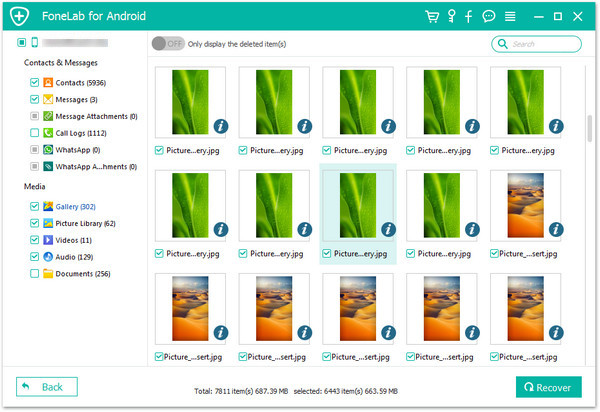
Once the scanning is completed,all data will be displayed in the list,including Media files: Gallery, Picture Library, Videos, Audio, Documents, App data; and text files: Contacts, Messages, Message Attachments, Call logs, WhatsApp & WhatsApp Attachments.Please select the file you want to recover and preview them in details.In the last step,just select the data you wanna recover and click "Recover" to save on computer.
Recover Deleted Photos from Android

In the scanning results,to recover Huawei photos and gallerys,please click "Gallery" and "Picture Library" item in the left of the classification to preview all the recoverable photos one by one,and then you can select out those missing photos you want quickly. "Only display deleted items"option to list the deleted files only. Finally, you can click "Recover" button to recover Huawei photos and save them on computer.


Selectively Recover Contacts on Android

The Android data recovery will scan your GS8 device. When scan is done, check "Contacts" to preview contacts in details,including Contact Name, Phone Number, Email,etc. Then mark which lost contacts or all contacts you want and click "Recover" to recover missing contacts back from your Huawei device,and all retrieved contacts will be saved on the computer as VCF, CSV or HTML for your use.


Recover Text Messages from Android

When scan is complete, you can preview all deleted text messages before recovering. Check "Messages" item to preview them one by one. You can read all conversations in the window, including name, date, contents, and time. After that, you can select the lost SMS on Huawei and recover them by click "Recover" button,only few seconeds,all of your SMS deleted will by extracted and saved on the computer as CSV, HTML format and attached images.


Regardless of whether you accidentally lost data from Android due to factory reset or other reasons,you need to have the safe and efficient way to get them back without any data loss,the Android Data Recovery is your best accessibility which used for data recovery.In additional,it allows you extract and recover lost data from broken Android with broken screen,black screen or other damaged situation.In additional,to avoding data lost or deleted on your Android phone or tablet,we recommend you backup data and restore to Huawei after factory reset with a Android data backup tool,which not only supports backup and restore contacts,sms,photos and more from Android on computer,but also enables you directly transfer data between iPhone and Android without data loss.


How to Recover Lost Data from iPhone XS

Summary: my worry is, if my iPhone XS loses data, how can I retrieve my lost data? We need to use a powerful and simple tool to do this. Thi...