Showing posts with label transfer android data to android. Show all posts

Monday, April 19, 2021

How to Transfer Data from Android to OnePlus 9 Pro

"I need help! What bothers me most is that I recently broke my HTC phone. I have to buy a new one to replace this smartphone. But what can I do to transfer my HTC message to my new oneplus 9 pro? Is it possible? This messages is very important to my business. If I can't give it back to me, it will be a great loss to me! "——Asked Ellie.

Because the latest oneplus 9 Pro has attracted so many Android users, it is a popular model for Android devices in 2021. Suppose you buy a new oneplus 9 Pro phone. After switching to the new device, you won't like to leave your favorite movies, music, or even the contact information of your dear friends simply. In addition, you still need to synchronize Android applications and other personal data on your new device. In order to do this, you need a good mobile management tool. What you need is Android data switch. This is a very powerful program, we strongly recommend that you transfer Android data to oneplus 9 pro.

Copy data from old Android phones to oneplus 9 Pro

Android data switch is a simple and effective data transmission tool, suitable for more than 6000 smart phones and tablets, including apple, Samsung, Huawei, oppo, Sony, HTC, Google, LG, Motorola, ZTE, etc. You can transfer data between two Android phones safely and reliably. You can also use this tool to synchronize data from different mobile platforms, IOS and Android. It can transfer call logs, contacts, pictures, videos, apps, photos, SMS, etc. if necessary, you can download the trial version.

The Key Feature of Mobile Transfer Software:

1. Simple and effective solution for transferring content between Symbian, Android, and iPhone.

2. One-Click to backup any device music, photo, video, text messages, contacts, call history, calendars, app data to your computer.


3. Transfer saved backups to your new device. Supports backups created by other mobile managers, such as iTunes, iCloud, BlackBerry, Mobile and others.


4. Comprehensive contact copy, including job title, email addresses, company name, etc.


5. Works with more then 6,000+ phones including Android, Symbian (Nokia), and all models of iPhones, including the newest iPhone X, iPhone 8.


6. Transfers content between phones on different networks. AT&T, Verizon, Sprint, T-Mobile.


7. Zero quality loss & risk-free: everything you transfer is 100% same as the original and can be only read by yourself.


How to Transfer Data from Android to Android

Step 1. Launch Mobile Transfer and select transfer mode

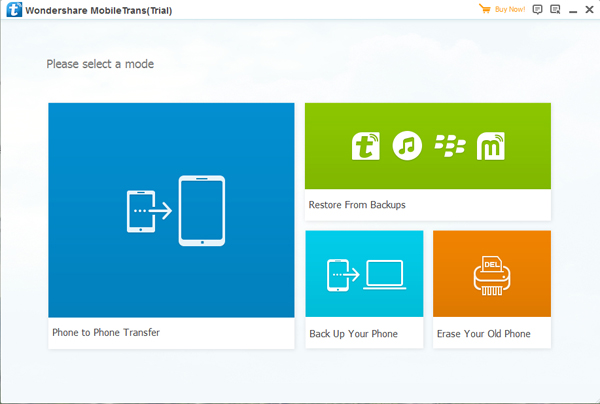
Download, install and launch Mobile Transfer software on the computer. When you see the interface as below, select "Phone to Phone Transfer".


Step 2. Connect both Android to the Computer

Connect two Android mobile phones to your computer. The program will recognized and detected your devices automatically and show as source phone and Destination as below image. You can click "Flip" to change the place of two phones.


Step 3. Transfer Data from Android to Android

From the box in the middle items, you can choice and mark the data type which you want to transfer. Then click "Start Copy" button to start transferring data. Patiently waiting for the transfer process, and check the data that has been transmitted on your destination phone.


Not only transfer data from Android to Android, you can also follow the similar way to transfer your data between iOS and Android, and transfer files from Android to Symbian devices with ease.


See more:

Wednesday, January 20, 2021

How to Transfer Data from Android to Samsung Galaxy S21

Summary: There is no doubt that data can be switched between two Android devices running on the same operating system. After reading this guide, you will learn how to transfer data between Android and Samsung Galaxy S21 through one click solution.

With the increasing speed of mobile phone update, various well-known mobile phone companies provide rich choices, such as LG, Sony, Samsung, Huawei, etc. In any case, the mobile phones of these companies will attract you to buy. The amazing Samsung Galaxy S21 was released. After you replace your old Android phone with a new Samsung Galaxy S10, transferring data should be the most important thing you have to do. In this article, we will show you a simple way to copy data from Android to Samsung Galaxy S21.

One click to sync Android data to Samsung Galaxy S21

After our comprehensive consideration, the most recommended way is to use such a professional and efficient software: Android data switch. The tool is suitable for windows and MAC and helps you effortlessly transfer all types of files you need from the old Android phone to the new Samsung Galaxy S21 / S21 + with just one click. As a good assistant, whether you need to copy personal data or all kinds of data, you can do it perfectly. Contacts, SMS, call history, gallery, video, calendar, audio and applications can be well transferred from Android to Android, from Android to computer, or from computer to Android, or even from IOS to Android. Not only Samsung Galaxy S21, it is also fully compatible with other Samsung devices, such as Galaxy S20 + / S20 / S11 + / S11 / S10 / S9 / S8 / S7, Samsung Galaxy note 20 / Note 10 / Note 9, etc.

The Key Feature of Mobile Transfer Software:

1. Simple and effective solution for transferring content between Symbian, Android, and iPhone.

2. One-Click to backup any device music, photo, video, text messages, contacts, call history, calendars, app data to your computer.


3. Transfer saved backups to your new device. Supports backups created by other mobile managers, such as iTunes, iCloud, BlackBerry, Mobile and others.


4. Comprehensive contact copy, including job title, email addresses, company name, etc.


5. Works with more then 6,000+ phones including Android, Symbian (Nokia), and all models of iPhones, including the newest iPhone X, iPhone 8.


6. Transfers content between phones on different networks. AT&T, Verizon, Sprint, T-Mobile.


7. Zero quality loss & risk-free: everything you transfer is 100% same as the original and can be only read by yourself.


How to Transfer Data from Android to Android

Step 1. Launch Mobile Transfer and select transfer mode

Download, install and launch Mobile Transfer software on the computer. When you see the interface as below, select "Phone to Phone Transfer".


Step 2. Connect both Android to the Computer

Connect two Android mobile phones to your computer. The program will recognized and detected your devices automatically and show as source phone and Destination as below image. You can click "Flip" to change the place of two phones.


Step 3. Transfer Data from Android to Android

From the box in the middle items, you can choice and mark the data type which you want to transfer. Then click "Start Copy" button to start transferring data. Patiently waiting for the transfer process, and check the data that has been transmitted on your destination phone.


Not only transfer data from Android to Android, you can also follow the similar way to transfer your data between iOS and Android, and transfer files from Android to Symbian devices with ease.


See more:

Monday, November 30, 2020

How to Transfer Android Data to LG

"I need to sync my phone number to my new LG phone. Is it possible to transfer all contacts or even all data between two devices with one click? "

Nowadays, Android phones are frequently replaced by smartphone users, and it is also common to replace old phones with new ones. The demand for data transmission tools is growing. Such software should have the function of transmitting various data, such as contacts, SMS, call records, applications and other files. Today I'm going to recommend a great data transfer program - phone transfer, which will help Android data transfer directly to LG without complicated steps.

Switching data between Android and LG

Android data switch is highly recommended by mobile phone users because it can be easily transferred from one Android system to another without losing quality. For example, transferring files between Android and LG, including contacts, SMS, photos, videos, call logs, calendar, music and applications. It also allows you to back up and restore phone data and helps you completely delete data on your old phone. It supports data transfer of all Android models, such as Samsung Galaxy S20 / S11 / S10 / S9 / S8 / note 20 / 10 / 9 / 8; HTC, LG, Lenovo, Motorola, Sony, Huawei, Google pixel, oneplus, ZTE, oppo, etc.

The Key Feature of Mobile Transfer Software:

1. Simple and effective solution for transferring content between Symbian, Android, and iPhone.

2. One-Click to backup any device music, photo, video, text messages, contacts, call history, calendars, app data to your computer.


3. Transfer saved backups to your new device. Supports backups created by other mobile managers, such as iTunes, iCloud, BlackBerry, Mobile and others.


4. Comprehensive contact copy, including job title, email addresses, company name, etc.


5. Works with more then 6,000+ phones including Android, Symbian (Nokia), and all models of iPhones, including the newest iPhone X, iPhone 8.


6. Transfers content between phones on different networks. AT&T, Verizon, Sprint, T-Mobile.


7. Zero quality loss & risk-free: everything you transfer is 100% same as the original and can be only read by yourself.


How to Transfer Data from Android to Android

Step 1. Launch Mobile Transfer and select transfer mode

Download, install and launch Mobile Transfer software on the computer. When you see the interface as below, select "Phone to Phone Transfer".


Step 2. Connect both Android to the Computer

Connect two Android mobile phones to your computer. The program will recognized and detected your devices automatically and show as source phone and Destination as below image. You can click "Flip" to change the place of two phones.


Step 3. Transfer Data from Android to Android

From the box in the middle items, you can choice and mark the data type which you want to transfer. Then click "Start Copy" button to start transferring data. Patiently waiting for the transfer process, and check the data that has been transmitted on your destination phone.


Not only transfer data from Android to Android, you can also follow the similar way to transfer your data between iOS and Android, and transfer files from Android to Symbian devices with ease.

Wednesday, November 25, 2020

How to Transfer Data from old Android to New Android

"I prefer to take pictures on a mobile device than a digital camera. I keep a lot of photos on my Android phone. How do I sync all my photos to my new Huawei mate 30 with one button? Is it possible? Thank you. "

When you replace an old Android phone with a new one, the first thing you need to do is transfer the data from the old phone to the new one. After all, the old Android kept a lot of our precious data, such as photos, contacts and so on. These data play an important role in our daily life. In this article, I'll show you the detailed steps to transfer data between Android and the new Android (Samsung, Huawei, etc.).

Switch data between old Android and Samsung / oneplus / LG / Huawei / Google

Phone switch is highly recommended by mobile phone users because it can be easily transferred from one Android system to another without losing quality. For example, transferring files between Android and Samsung / oneplus / LG / Huawei / Google / Motorola / Xiaomi includes contacts, SMS, photos, videos, call logs, calendars, music and applications. It also allows you to back up and restore phone data and helps you completely delete data on your old phone. It supports mobile phone transfer of all Android models, such as Samsung Galaxy S20 / S11 / S10 / S9 / S8 note 20 / 10 / 9 / 8; HTC, LG, Lenovo, Motorola, Sony, Huawei, Google pixel, oneplus, ZTE, oppo, etc.

The Key Feature of Mobile Transfer Software:

1. Simple and effective solution for transferring content between Symbian, Android, and iPhone.

2. One-Click to backup any device music, photo, video, text messages, contacts, call history, calendars, app data to your computer.


3. Transfer saved backups to your new device. Supports backups created by other mobile managers, such as iTunes, iCloud, BlackBerry, Mobile and others.


4. Comprehensive contact copy, including job title, email addresses, company name, etc.


5. Works with more then 6,000+ phones including Android, Symbian (Nokia), and all models of iPhones, including the newest iPhone X, iPhone 8.


6. Transfers content between phones on different networks. AT&T, Verizon, Sprint, T-Mobile.


7. Zero quality loss & risk-free: everything you transfer is 100% same as the original and can be only read by yourself.


How to Transfer Data from Android to Android

Step 1. Launch Mobile Transfer and select transfer mode

Download, install and launch Mobile Transfer software on the computer. When you see the interface as below, select "Phone to Phone Transfer".


Step 2. Connect both Android to the Computer

Connect two Android mobile phones to your computer. The program will recognized and detected your devices automatically and show as source phone and Destination as below image. You can click "Flip" to change the place of two phones.


Step 3. Transfer Data from Android to Android

From the box in the middle items, you can choice and mark the data type which you want to transfer. Then click "Start Copy" button to start transferring data. Patiently waiting for the transfer process, and check the data that has been transmitted on your destination phone.


Not only transfer data from Android to Android, you can also follow the similar way to transfer your data between iOS and Android, and transfer files from Android to Symbian devices with ease.

Tuesday, November 24, 2020

How to Transfer Android Data to Samsung

[Summary]: we will provide you with simple and effective data transmission methods, including address book, SMS, photos, videos, call records, music, applications, bookmarks, calendars, etc., to transfer all Android phone data to Samsung.

With the increase of Android users, many people are looking for solutions to transfer data between smart phones. Some Android users turn their eyes to the latest version of Samsung. When they switch to a new device, the most important thing is to copy the photos from the old Android phone to the new one. I don't believe anyone would like to move them one by one via Bluetooth or email. Here, we are going to discuss how to easily transfer photos from Android to Samsung Galaxy S20 / S11 / note 20 / Note 10.

Transfer Android data to Samsung through Android data switch

The best solution for transferring data between Android and Samsung phones is to turn to the Android data switch. In fact, compared with Bluetooth, Android data switch is highly recommended for mobile phone users because it can easily transfer all the information on Android phones to Samsung / Android phones without taking time, including contacts, SMS, photos, videos, music, calendar, call logs and applications. In addition to transferring data between two mobile devices, it allows you to back up and restore phone data and helps you completely delete data from your phone. It is suitable for almost all Android models, including Samsung, HTC, Lenovo, LG, Motorola, Google pixel, Huawei, HTC, oppo, vivo, Xiaomi, etc.


How to Transfer Data from Android to Android

Step 1. Launch Mobile Transfer and select transfer mode

Download, install and launch Mobile Transfer software on the computer. When you see the interface as below, select "Phone to Phone Transfer".


Step 2. Connect both Android to the Computer

Connect two Android mobile phones to your computer. The program will recognized and detected your devices automatically and show as source phone and Destination as below image. You can click "Flip" to change the place of two phones.


Step 3. Transfer Data from Android to Android

From the box in the middle items, you can choice and mark the data type which you want to transfer. Then click "Start Copy" button to start transferring data. Patiently waiting for the transfer process, and check the data that has been transmitted on your destination phone.


Not only transfer data from Android to Android, you can also follow the similar way to transfer your data between iOS and Android, and transfer files from Android to Symbian devices with ease.

Saturday, November 4, 2017

The 3 steps is to complete the data transfer between Android and Android

How do you transfer data from Android to Android? USB cable can only transfer video, photos, music and other media files, if you want to transfer contacts, messages, call history and other data, you have to help through the third party software. This article will introduce you to a simple, convenient and safe way to transfer data.

Transfer mobile phone data from Android to Android

To transfer data from mobile phones (including contacts, text messages, whatapp messages, call history) from Android to Android, it is strongly recommended to use Phone to Phone Transfer. It's a simple, easy-to-use tool to transfer Android data to Android.

In addition to transferring photos, videos, music and other media files, it can also transfer data such as contacts, SMS, call history, calendar, applications, files, etc.. In addition to the transfer between Android and Android, it can also transfer data between Android, iOS, symbian.


In addition to data transmission, it can also backup and restore data and wipe data before selling mobile phones. Phone to Phone Transfer adapt for all mobile phone models, including HUAWEI (Mate 10 (Pro) 9 / Mate, P10 / P9), Samsung (Galaxy S7 / S6 / S5), HTC, Lenovo, Motorola, Google, ZTE, Pixel, millet, LG and so on.

If you want to know more about Phone to phone transfer, please read the details below.


Three Steps to Transfer Datas from Android to Android:

Here,I will take transfer contacts from Galaxy Note 3 to Galaxy S8 for example,you also can switch other file types from any Android phone to Samsung S8/S8 Plus directly.

Step 1.Connect two Samsung Galaxy with the computer
Connect both of your Samsung Note 3 and Samsung S8 with computer via USB cables, then Phone Transfer will detect them immediately. You will be able to see the below screenshot in the front of your window.


Step 2.Select Contacts you Want to Transfer
Check whether your source and target phones are placed under the "Source" and "Destination" categories respectively. If they aren’t, you can click the "Flip" button from the center to place the phones in their correct categories.And then select the file types you want to move from old Samsung Galaxy Note 3 to new Galaxy S8,please select “Contacts” item if you just want to transfer contacts,you can also select music, photos, videos, SMS and other file types,then move them at onces.


Step 3.Transfer Contacts from Samsung Galaxy to Galaxy S8/S8+
Finally click the "Start Transfer" button to begin the transfer. When the transferring comes to an end, you should click "Completed".Only few mintues,all of your contacts be moved to your new Samsung Galaxy S8,then you can use the previous contacts on your new phone.


Note: Please keep connecting your two phones with computer during the transferring process.In addittional,you can click the "Clear data before copy" checkbox from the bottom of the Destination section, and click the "Confirm" button from the "Clear phone data" confirmation box in order to allow the Phone Transfer program to erase the data from the target phone (Samsung S8) before transferring the new data to it.

Download the Phone to Phone Transfer and try to move data from Android to the new Samsung Galaxy S8 with one click:


Tips:You can also use this Samsung Manager tool to manage your phone’s data on computer,and transfer music, photos, videos, contacts, SMS between two mobiles (both Android and iPhone are supported).

How to Recover Lost Data from iPhone XS

Summary: my worry is, if my iPhone XS loses data, how can I retrieve my lost data? We need to use a powerful and simple tool to do this. Thi...