Showing posts with label Broken Android Data Extraction. Show all posts

Thursday, April 1, 2021

How to Retrieve Photos on Broken Android Phone and Tablet

"My Samsung Galaxy S6 is broken. I accidentally dropped my Android phone and the screen cracked. Now I want to retrieve photos from broken Android phone. Can I retrieve photos from broken Android phone through the program? Thank you for your help!"

Android phone and tablet broken is a common accident, such as water damage, black screen crash, broken screen, device brick or frozen due to Android operating system update and so on. The most common situation is that after your Android phone screen turns black or broken, you drop it on the ground. But worse may come later. There are so many important photos and videos in your broken Android phone that you have to rush to recover them.

Cracked Or Broken Android Screen – How To Recover Photos?

Broken Android data extraction can scan a broken Android phone, and recover photos in the Android phone memory and SD card. Before restoring, you can preview and selectively restore your photos.

-Easily retrieve data from Android phone / tablet broken screen, black screen, frozen screen, locked screen.

-Recover photos, videos, WhatsApp messages, audio, contacts, SMS, files and more.

-It can run on Samsung Galaxy S6 / S5 / S4 / S3 / Note 5 / Note 4.



Recover data from broken Android by Android data Recovery

Step 1: First of all, free download and install the program on your computer with above link. Then the program will automatically launch when it is finished. Choose Broken Android Phone Data Extraction on the left of the interface.

Step 2: Connect your vivo phone to the computer with a USB cable. Click Start if your Android device stays in broken screen, black screen or non-responsive screen, you cannot enter password or cannot touch the screen. Otherwise click Fix Device if the system of your Android device is damaged, and you cannot operate it. Here you should choose Fix Device.
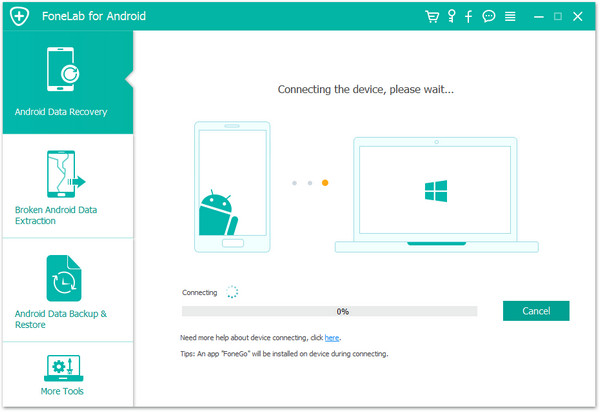

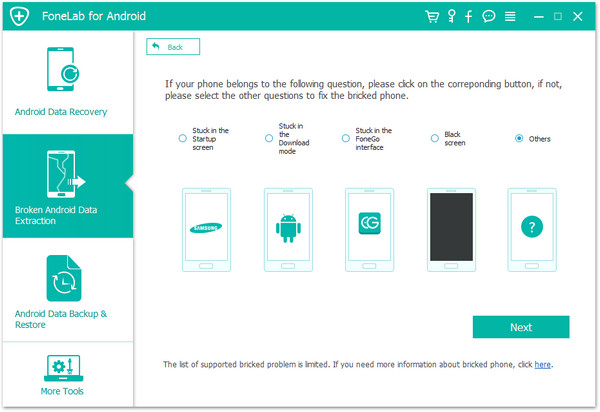
Step 3: Choose the situation that your phone is facing with: Stuck in Startup screen, Stuck in the Download mode, Stuck in the FoneGo interface, Black screen and so on. Click Next to move on.


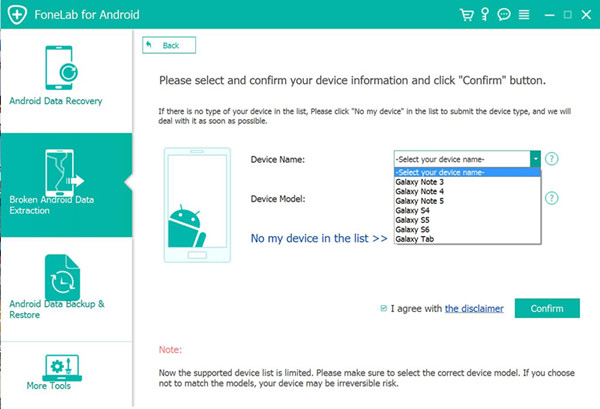
Step 4: Make sure that you choose the correct information of your Android device including the device name and device model. Then click Confirm to move on.


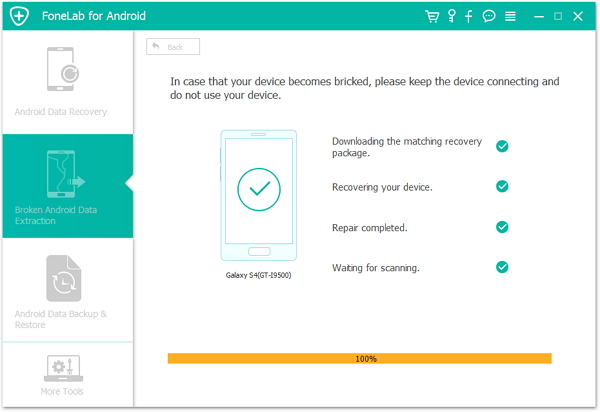
Step 5: The program will download recovery package and then repair the frozen Android system. After it is done, you can navigate to Android Data Recovery feature to access and scan your Android data, including the deleted files.


Step 6: Check Messages and Message Attachment on the left pane to view details and mark the items you want to recover and click Recover to save them onto your computer.
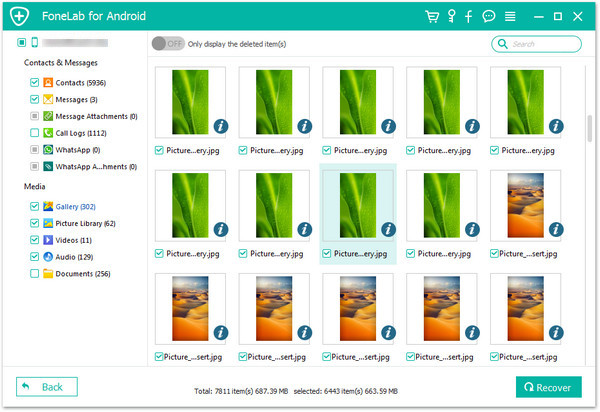


With the help of this software, you can get Android photos off a frozen phone, recover data from dead phone and so on. Why not get it on your PC now?


Friday, March 12, 2021

Broken Android Data Recovery – Recover Data from Android with Broken Screen or Black Screen

Summary: Do you want to recover / extract / access data from a broken screen Android phone? This article will teach you the best way to scan and recover Android phone broken screen data, such as: photos, contacts, SMS, video, audio, WhatsApp data, call logs and more.

Here are some of the most common habits people have on their Android phones that leads Android broken:

1. Accidentally dropped the phone. When you carry out some activities on your Android phone, what things you will encounter or the Android phone slips from your hand are the common reasons for the Android phone to break down. If the damage is not serious, the repair work is easy, but in serious cases, replacing the phone is the only choice.

2. Water damage is the second common situation of Android users.

3. Unable to access Android phone operating system or the Android phone screen does not respond.

Recover contacts, text messages, photos and videos from Android with damaged screen

Broken Android data recovery has special advanced functions to recover data from Android phones with damaged screens. With the help of this software, you can effectively retrieve files from Android phones with broken screen and Android phones with black screen, root, virus infection and formatting. You can recover all kinds of data from Android phone, such as photos, SMS, contacts, videos, songs, etc. Including Samsung Galaxy S6/S5/S4/S3te 5te 4te 3.


Recover Data From Android by Android data Recovery

Step 1: First of all, free download and install the program on your computer with above link. Then the program will automatically launch when it is finished. Choose Broken Android Phone Data Extraction on the left of the interface.

Step 2: Connect your vivo phone to the computer with a USB cable. Click Start if your Android device stays in broken screen, black screen or non-responsive screen, you cannot enter password or cannot touch the screen. Otherwise click Fix Device if the system of your Android device is damaged, and you cannot operate it. Here you should choose Fix Device.


Step 3: Choose the situation that your phone is facing with: Stuck in Startup screen, Stuck in the Download mode, Stuck in the FoneGo interface, Black screen and so on. Click Next to move on.


Step 4: Make sure that you choose the correct information of your Android device including the device name and device model. Then click Confirm to move on.


Step 5: The program will download recovery package and then repair the frozen Android system. After it is done, you can navigate to Android Data Recovery feature to access and scan your Android data, including the deleted files.


Step 6: Check Messages and Message Attachment on the left pane to view details and mark the items you want to recover and click Recover to save them onto your computer.


With the help of this software, you can get Android photos off a frozen phone, recover data from dead phone and so on. Why not get it on your PC now?


Tuesday, February 23, 2021

How to Recover Data from Samsung with Broken Screen

Summary: Do you want to recover / extract / access data from a broken screen Samsung phone? This article will teach you the best way to scan and recover photos, contacts, SMS, video, audio, WhatsApp data, call logs and more from broken Samsung phone.

As you know, not only can we store contacts and text messages on our phones, people may save most of their personal photos and other personal files on their phones. Therefore, if users accidentally damage Samsung phones, their valuable data will be lost. Keeping the backup on other devices can help users get rid of the pain of data loss caused by Samsung phone failure. But it's clear that most people don't realize the importance of backing up Samsung data until they lose it for various reasons.

Recover contacts, text messages, photos and videos from broken Samsung

Broken Android data Extraction has special advanced function to recover data from Samsung phone with broken screen. With the help of this software, you can effectively retrieve data from Samsung phones with broken screen or black screen, root, virus infection and formatting. You can recover all kinds of data from Samsung Galaxy S6/S5/S4/S3te 5te 4, such as photos, SMS, contacts, videos, songs, etc. Do you need to recover data from it? If the answer is yes, all you need to do is read the tutorial and try to use the tool.


Recover Data From Android by Android data Recovery

Step 1: First of all, free download and install the program on your computer with above link. Then the program will automatically launch when it is finished. Choose Broken Android Phone Data Extraction on the left of the interface.

Step 2: Connect your vivo phone to the computer with a USB cable. Click Start if your Android device stays in broken screen, black screen or non-responsive screen, you cannot enter password or cannot touch the screen. Otherwise click Fix Device if the system of your Android device is damaged, and you cannot operate it. Here you should choose Fix Device.


Step 3: Choose the situation that your phone is facing with: Stuck in Startup screen, Stuck in the Download mode, Stuck in the FoneGo interface, Black screen and so on. Click Next to move on.


Step 4: Make sure that you choose the correct information of your Android device including the device name and device model. Then click Confirm to move on.


Step 5: The program will download recovery package and then repair the frozen Android system. After it is done, you can navigate to Android Data Recovery feature to access and scan your Android data, including the deleted files.


Step 6: Check Messages and Message Attachment on the left pane to view details and mark the items you want to recover and click Recover to save them onto your computer.


With the help of this software, you can get Android photos off a frozen phone, recover data from dead phone and so on. Why not get it on your PC now?


Monday, January 4, 2021

How to Recover Data from Broken Android

Problem: my Samsung Galaxy S6 screen is broken! The mobile phone is working, but I can't see anything. I want to retrieve my contact list, but I can't find it, because I can't unlock the galaxy S6 of broken screen. What can I do?

Have you ever broken or broken your Android phone screen, unable to get data from the device? When your Android is broken, the most urgent thing is that your phone has lost precious photos, contacts and other data, and you are eager to retrieve the lost data. Next, I will provide you with a perfect data recovery scheme.

The best way to recover photos, contacts and SMS from broken Android

Broken Android data extraction is specially designed for data recovery from damaged, water damaged, frozen and dead Android smartphones. With its help, you can easily recover data from damaged Android phones, including photos, videos, music, WhatsApp messages, call history, contacts, etc. It applies to Samsung Galaxy S6 / S5 / S4 / Note 5 / Note 4 and so on.


Recover Data From Android by Android data Recovery

Step 1: First of all, free download and install the program on your computer with above link. Then the program will automatically launch when it is finished. Choose Broken Android Phone Data Extraction on the left of the interface.

Step 2: Connect your vivo phone to the computer with a USB cable. Click Start if your Android device stays in broken screen, black screen or non-responsive screen, you cannot enter password or cannot touch the screen. Otherwise click Fix Device if the system of your Android device is damaged, and you cannot operate it. Here you should choose Fix Device.


Step 3: Choose the situation that your phone is facing with: Stuck in Startup screen, Stuck in the Download mode, Stuck in the FoneGo interface, Black screen and so on. Click Next to move on.


Step 4: Make sure that you choose the correct information of your Android device including the device name and device model. Then click Confirm to move on.


Step 5: The program will download recovery package and then repair the frozen Android system. After it is done, you can navigate to Android Data Recovery feature to access and scan your Android data, including the deleted files.


Step 6: Check Messages and Message Attachment on the left pane to view details and mark the items you want to recover and click Recover to save them onto your computer.


With the help of this software, you can get Android photos off a frozen phone, recover data from dead phone and so on. Why not get it on your PC now?


Thursday, December 31, 2020

How to Recover Data from Android with Broken Screen

Summary: The loss of Android phone contacts, text messages, photos and videos always upset Android users. What's worse, you didn't have a backup before. So, valuable and meaningful personal contact information has disappeared and will not come back? Don't worry, you still have a chance to scan and recover Android lost data. Here are excellent data recovery programs to help you solve this problem.

As you know, not only can we store contacts and text messages on our phones, people may save most of their personal photos and other personal files on their phones. Therefore, if users accidentally damage Android phones, their valuable data will be lost. Keeping the backup on other devices can help users get rid of the pain of losing data due to Android phone failure. But it's clear that most people don't realize the importance of backing up Android data until they lose it for various reasons.

Recover contacts, text messages, photos and videos from broken Android

The situation we mentioned above may be that what you need is Broken Android data recovery. This software has special advanced functions to recover data from Android phones with broken screen. With the help of this software, you can effectively retrieve data from Android phones with broken screen and Android phones with black screen, root, virus infection and formatting. You can recover all kinds of data from Android phone, such as photos, SMS, contacts, videos, songs, etc. Including Samsung Galaxy S6 / S5 / S4 / Note 5 / Note 4. 


Recover Data From Android by Android data Recovery

Step 1: First of all, free download and install the program on your computer with above link. Then the program will automatically launch when it is finished. Choose Broken Android Phone Data Extraction on the left of the interface.

Step 2: Connect your vivo phone to the computer with a USB cable. Click Start if your Android device stays in broken screen, black screen or non-responsive screen, you cannot enter password or cannot touch the screen. Otherwise click Fix Device if the system of your Android device is damaged, and you cannot operate it. Here you should choose Fix Device.


Step 3: Choose the situation that your phone is facing with: Stuck in Startup screen, Stuck in the Download mode, Stuck in the FoneGo interface, Black screen and so on. Click Next to move on.


Step 4: Make sure that you choose the correct information of your Android device including the device name and device model. Then click Confirm to move on.


Step 5: The program will download recovery package and then repair the frozen Android system. After it is done, you can navigate to Android Data Recovery feature to access and scan your Android data, including the deleted files.


Step 6: Check Messages and Message Attachment on the left pane to view details and mark the items you want to recover and click Recover to save them onto your computer.


With the help of this software, you can get Android photos off a frozen phone, recover data from dead phone and so on. Why not get it on your PC now?


Friday, December 11, 2020

How to Retrieve Call History from Broken Screen Samsung Galaxy S6

"My Samsung Galaxy S6 screen is cracked!" the phone works, but I can't see anything. I wanted to retrieve my call log, but couldn't find it because I couldn't unlock my broken Galaxy S6 screen. What can I do? "

Under normal circumstances, damage caused by improper use of operators, including water damage, etc., will cause your mobile phone to malfunction or get a blank screen without visual feedback when you encounter these problems. You can't access your phone and can't use it normally, which means that all the files you have stored can't be opened again. Accidentally broke your Samsung Galaxy S6, desperate to recover all call history and other data from the damaged Samsung phone?

Resume call history from screen burst Samsung Galaxy S6

Broken Samsung data recovery works well for Samsung broken / broken screen data recovery. With its help, you can easily restore the call history on the broken screen of Samsung Galaxy S6 or S6 edge. The software can also recover the contacts, SMS, photos, videos, music and other files of the scrapped Samsung Galaxy mobile phone, such as screen rupture, water intrusion, black screen, system crash, etc. It is suitable for Samsung Galaxy S6 (edge), S5 / S4, Galaxy note 5 / 4 / 3, and you can download the trial version if you need to.


Recover data from broken Android by Android data Recovery

Step 1: First of all, free download and install the program on your computer with above link. Then the program will automatically launch when it is finished. Choose Broken Android Phone Data Extraction on the left of the interface.

Step 2: Connect your vivo phone to the computer with a USB cable. Click Start if your Android device stays in broken screen, black screen or non-responsive screen, you cannot enter password or cannot touch the screen. Otherwise click Fix Device if the system of your Android device is damaged, and you cannot operate it. Here you should choose Fix Device.


Step 3: Choose the situation that your phone is facing with: Stuck in Startup screen, Stuck in the Download mode, Stuck in the FoneGo interface, Black screen and so on. Click Next to move on.


Step 4: Make sure that you choose the correct information of your Android device including the device name and device model. Then click Confirm to move on.


Step 5: The program will download recovery package and then repair the frozen Android system. After it is done, you can navigate to Android Data Recovery feature to access and scan your Android data, including the deleted files.


Step 6: Check Messages and Message Attachment on the left pane to view details and mark the items you want to recover and click Recover to save them onto your computer.


With the help of this software, you can get Android photos off a frozen phone, recover data from dead phone and so on. Why not get it on your PC now?


How to Recover Lost Data from iPhone XS

Summary: my worry is, if my iPhone XS loses data, how can I retrieve my lost data? We need to use a powerful and simple tool to do this. Thi...