Showing posts with label transfer android data to samsung s8. Show all posts

Tuesday, May 23, 2017

How to transfer photos from android to android


Google Pixel is on the market, and for me, it's like my Savior, freeing me from the Samsung Galaxy S7. Because after a long period of use, my Samsung Galaxy S7 became slower and slower, so I decided to change my cell phone to Google Pixel. There's no doubt that Google Pixel is a great Android phone, especially on camera. After the change of the mobile phone, I really bittersweet, because I am in trouble: how to transfer my photos from the Samsung Galaxy S7 to Google Pixel?

My friend laughed when I complained to my friend. He told me, in fact, to transfer the photos from the Samsung Galaxy S7 to Google Pixel is actually very simple, I just need a data transfer software phone to transfer phone. So I bought the software without hesitation. As expected, the software helped me quickly and safely transfer photos from the Samsung Galaxy S7 to the Google Pixel. I'm so happy.

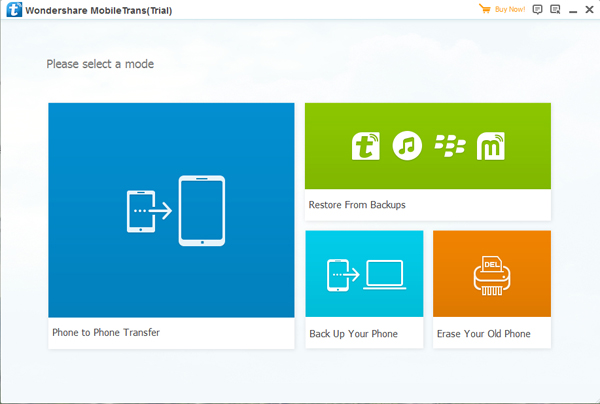
How to transfer photos from android to android——phone to phone transfer
As far as I know, phone to phone transfer is a software dedicated to data transfer. It quickly helped me transfer photos from the Samsung Galaxy S7 to the Google Pixel. In fact, phone to phone transfer can help us to include more activities, it can help us to transfer data from a Android mobile phone to another Android mobile phone.

Phone tophone transfer is a very practical data transfer software. It can help us transfer photos, video, audio, recording, SMS, WhatsApp, message, message, music and so on from one Android cell phone(Samsung, Motorola, HTC, Meizu, ZTE, HUAWEI, millet, and so on) to another Android mobile phone(Samsung, Motorola, HTC, Meizu, ZTE, HUAWEI, millet, and so on). With it, you don't have to worry about the data transfer anymore.

If you have ever had this kind of trouble, please read the introduction of phone to phone transfer carefully!



Three Steps to Transfer Contacts from Samsung to Samsung Galaxy S8


Here,I will take transfer contacts from Galaxy Note 3 to Galaxy S8 for example,you also can switch other file types from any Android phone to Samsung S8/S8 Plus directly.

Step 1.Connect two Samsung Galaxy with the computer
Connect both of your Samsung Note 3 and Samsung S8 with computer via USB cables, then Phone Transfer will detect them immediately. You will be able to see the below screenshot in the front of your window.


Step 2.Select Contacts you Want to Transfer
Check whether your source and target phones are placed under the "Source" and "Destination" categories respectively. If they aren’t, you can click the "Flip" button from the center to place the phones in their correct categories.And then select the file types you want to move from old Samsung Galaxy Note 3 to new Galaxy S8,please select “Contacts” item if you just want to transfer contacts,you can also select music, photos, videos, SMS and other file types,then move them at onces.


Step 3.Transfer Contacts from Samsung Galaxy to Galaxy S8/S8+
Finally click the "Start Transfer" button to begin the transfer. When the transferring comes to an end, you should click "Completed".Only few mintues,all of your contacts be moved to your new Samsung Galaxy S8,then you can use the previous contacts on your new phone.


Note: Please keep connecting your two phones with computer during the transferring process.In addittional,you can click the "Clear data before copy" checkbox from the bottom of the Destination section, and click the "Confirm" button from the "Clear phone data" confirmation box in order to allow the Phone Transfer program to erase the data from the target phone (Samsung S8) before transferring the new data to it.

Download the Phone to Phone Transfer and try to move data from Android to the new Samsung Galaxy S8 with one click:


Tips:You can also use this Samsung Manager tool to manage your phone’s data on computer,and transfer music, photos, videos, contacts, SMS between two mobiles (both Android and iPhone are supported).


Wednesday, May 17, 2017

How to Transfer data from android to samsung Galaxy S8

"Lately, I've really had enough of my HUAWEI phone.". Therefore, in my friend's introduction, I bought a Samsung Galaxy S8., I have always been obsessed with Android mobile phones, since the use of Samsung Galaxy S8, I simply love to do anything at all. However, I also have a little trouble, my original HUAWEI mobile phone has saved a lot of photos, videos and documents and other data, how can I safely and quickly to transfer data from HUAWEI mobile phone Samsung Galaxy S8?" James asked.

Many times, I would be asked: Android mobile phone data conversion, in particular, how to transfer data from other Android mobile phones to Samsung Galaxy S8? In fact, James needn't be so sad. There is a saying in China that nothing is impossible to a willing mind in the world. There is a software can help James to HUAWEI mobile phone data to Samsung Galaxy S8, that is, phone to phone transfer.
Phoneto phone transfer is a super powerful data transfer software. It meets the need for data transfer between Android handsets. And for a lot of Android phones, such as HUAWEI, Motorola, HTC, Samsung, Meizu, ZTE, and so on. As a result, Phone to phone transfer can definitely help James transfer data from HUAWEI phones to Samsung Galaxy S8. More, he can also transfer data from other Android handsets (HUAWEI, Motorola, HTC, Samsung, Meizu, ZTE, etc.) to Samsung's Galaxy S8. Phone to phone transfer can help us transfer photos, video, contacts, audio, music, call logs,WhatsApp message,message and other data from other Android mobile phones to Samsung Galaxy S8

If you want to know more about Phone to phone transfer, please read the details below.


Three Steps to Transfer Contacts from Samsung to Samsung Galaxy S8


Here,I will take transfer contacts from Galaxy Note 3 to Galaxy S8 for example,you also can switch other file types from any Android phone to Samsung S8/S8 Plus directly.

Step 1.Connect two Samsung Galaxy with the computer
Connect both of your Samsung Note 3 and Samsung S8 with computer via USB cables, then Phone Transfer will detect them immediately. You will be able to see the below screenshot in the front of your window.


Step 2.Select Contacts you Want to Transfer
Check whether your source and target phones are placed under the "Source" and "Destination" categories respectively. If they aren’t, you can click the "Flip" button from the center to place the phones in their correct categories.And then select the file types you want to move from old Samsung Galaxy Note 3 to new Galaxy S8,please select “Contacts” item if you just want to transfer contacts,you can also select music, photos, videos, SMS and other file types,then move them at onces.


Step 3.Transfer Contacts from Samsung Galaxy to Galaxy S8/S8+
Finally click the "Start Transfer" button to begin the transfer. When the transferring comes to an end, you should click "Completed".Only few mintues,all of your contacts be moved to your new Samsung Galaxy S8,then you can use the previous contacts on your new phone.


Note: Please keep connecting your two phones with computer during the transferring process.In addittional,you can click the "Clear data before copy" checkbox from the bottom of the Destination section, and click the "Confirm" button from the "Clear phone data" confirmation box in order to allow the Phone Transfer program to erase the data from the target phone (Samsung S8) before transferring the new data to it.

Download the Phone to Phone Transfer and try to move data from Android to the new Samsung Galaxy S8 with one click:


Tips:You can also use this Samsung Manager tool to manage your phone’s data on computer,and transfer music, photos, videos, contacts, SMS between two mobiles (both Android and iPhone are supported).

How to Recover Lost Data from iPhone XS

Summary: my worry is, if my iPhone XS loses data, how can I retrieve my lost data? We need to use a powerful and simple tool to do this. Thi...