Showing posts with label recover contacts galaxy s8. Show all posts

Thursday, August 2, 2018

How to Recover lost contact and deleted contact from Samsung Galaxy S8

Because most smartphones run Android operating systems, such as Samsung, HTC, LG, HUAWEI, SONY, SHARP, Google Pixel, motorcycle, Lenovo, Google Nexus, OnePlus, AUSU, ZTE and so on. The Android phone has a clear drawback. Once you use your cell phone for a long time, it will run slowly and often have some failures, which can easily cause data loss. Most Android phones don't have a recycling bin, and you need to learn some effective ways to retrieve deleted data.


How to restore the lost contact of Samsung Galaxy S8

In this information age, more and more interpersonal relationships make it difficult to find everyone without keeping information, so that the contact can easily provide us with the relevant information. While recording their basic information, it not only reduces the burden of the brain, but also is not bound by various conditions. It is convenient to carry the management of contact information, to facilitate contact with family and friends, and to make people closer to people. If you use a mobile phone to save contacts, you can not only save paper, but also long-term storage, and can save friends'smartphone information.

So contact is very important. It's hard to imagine what will happen after we lose. However, the reality is cruel. What would you do if you really lost the phone call? Below will teach you how to simply recover the missing contacts from Samsung Galaxy S8.

Android data recovery can help you recover the missing data directly from the Android phone. When you find data lost or deleted, the best thing to do is to stop using the device, which prevents the data from being overwritten by new data. Then you need an emergency response, using Android data recovery software, which can easily help you retrieve as many as 20 data files. The 3 recovery way will easily help you retrieve the data.


           

How to Recover Deleted or Lost Contact from Samsung Galaxy S8

Step 1.Connect Samsung Galaxy note8 to Computer

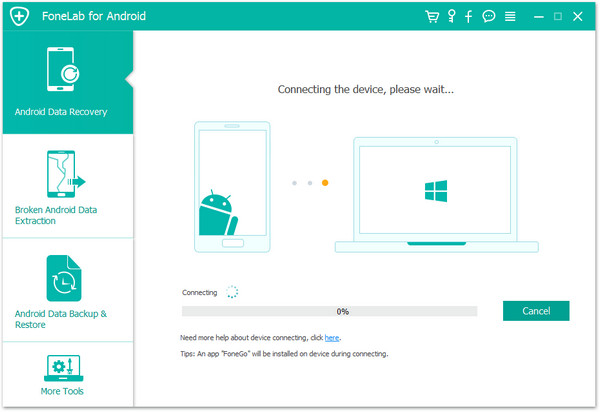
Firstly please download Samsung Data Recovery,then launch it on your computer,run it and connect Samsung Galaxy note8 to PC using an USB.


Step 2.Open the USB Debugging on Samsung Galaxy note8

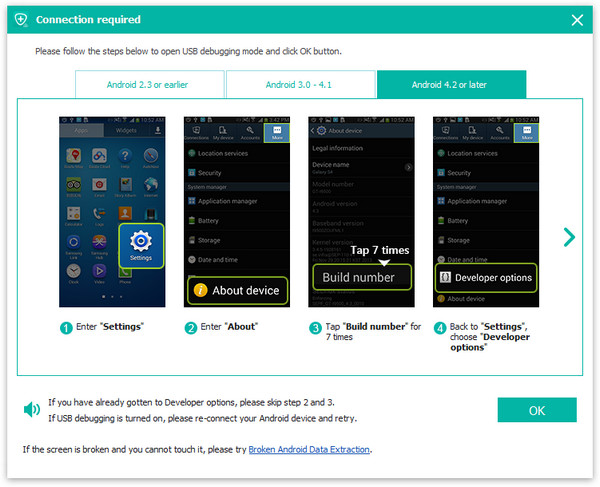
Here is the right methods to open USB debugging on Samsung steps:
1) For Android 4.2 or newer: Enter “Settings”> Click “About Phone” > Tap “Build number” for several times until getting a note “You are under developer mode” > Back to “Settings” > Click “Developer options”> Check “USB debugging”
2) For Android 3.0 to 4.1: Enter “Settings” > Click “Developer options”> Check “USB debugging”
3) For Android 2.3 or earlier: Enter “Settings”> Click “Applications” > Click “Development”> Check “USB debugging”
4)For Android 5.0 or newer: Tap “Settings” > “About Phone” to tap “Build number” seven times for “You are now a developer!” signal.Then,move to “Settings” > “Developer options” to turn on “USB debugging”


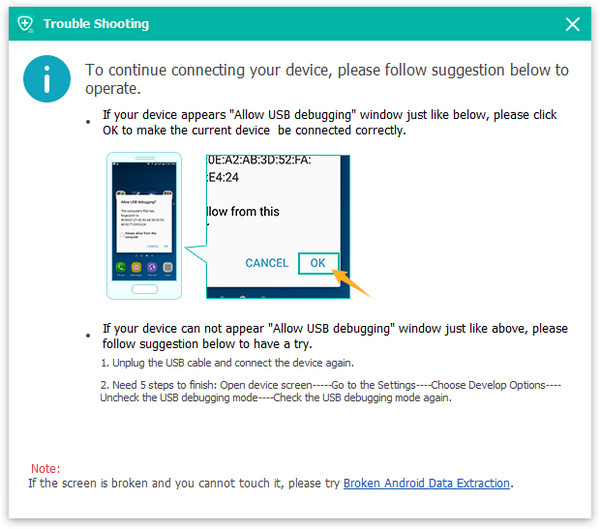
Tips: For Samsung Galaxy note8 that base on Android 7.0/6.0 or above,just click OK on your phone to allow USB debugging,so the program can detect the phone.


Step 3.Select File Types You want to Recover from note8

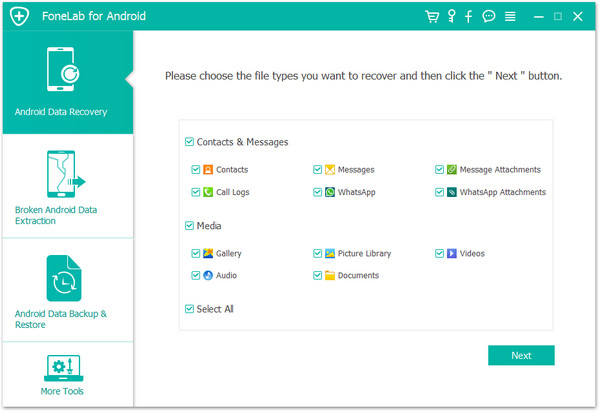
The debugging process will enable easily detect your Samsung.Once your device is detected,the program will scan the device for all data,you need to select the files types from category,for example "Gallery", "Contacts", "Messages",Then click the "Next" button.


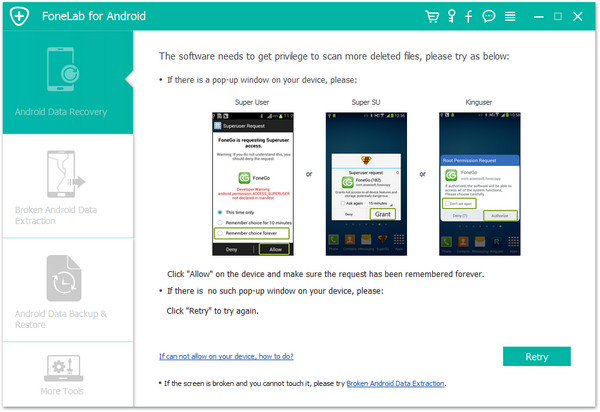
It will has a prompt on your phone as follow,tap "Allow" and permit the program to scan and analyze the selected files on your phone.


Step 4. Scan Samsung Galaxy note8

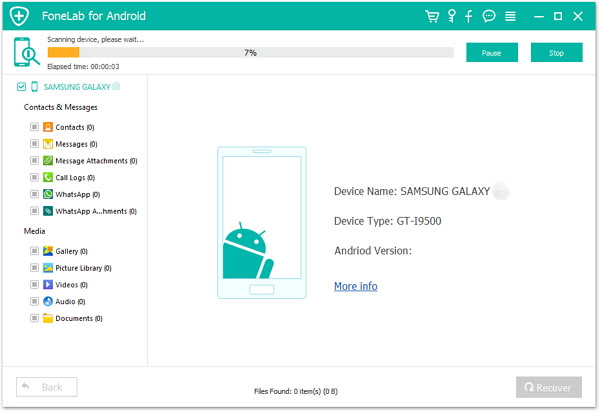
Begin to scan and analyze data stored on your Samsung Galaxy note8 phone.


Step 5.Preview and Retrieve Lost Data from Samsung Galaxy note8

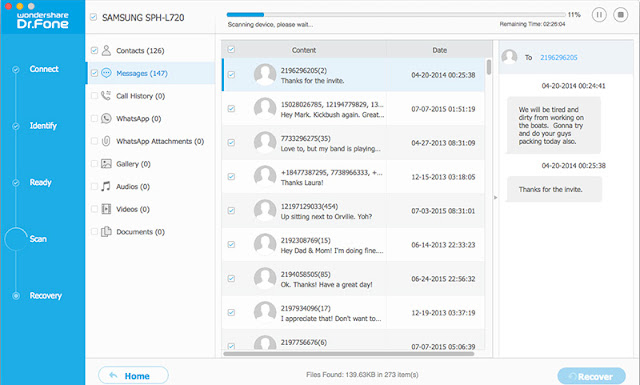
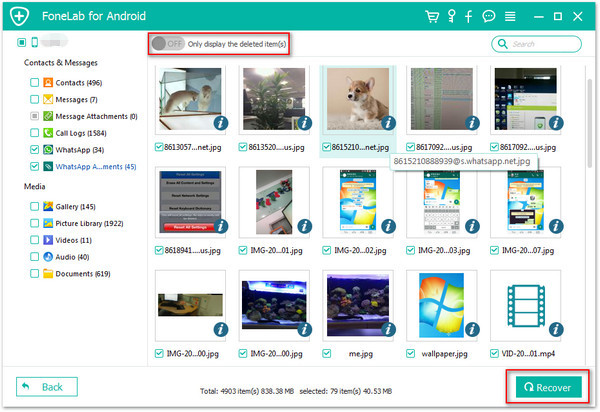
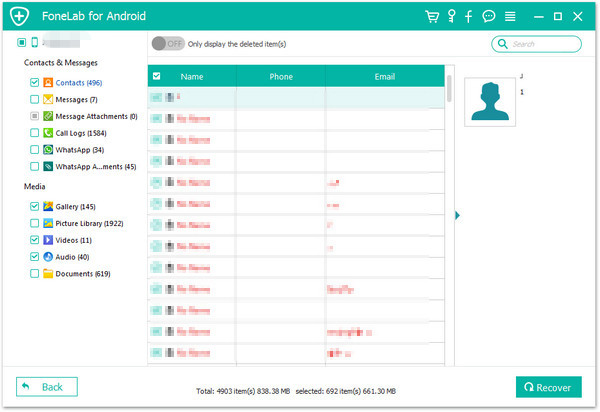
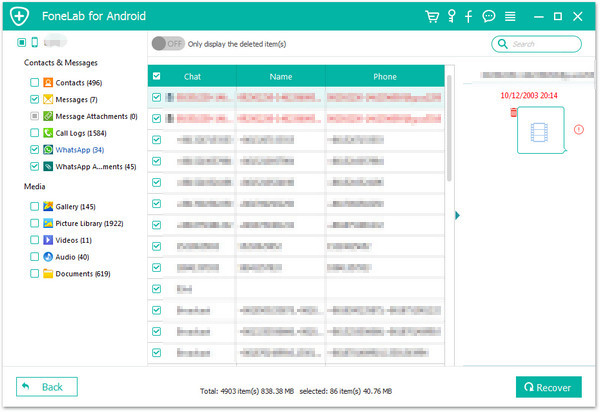
Once the scanning is completed,all data will be displayed in the list,including Media files: Gallery, Picture Library, Videos, Audio, Documents, App data; and text files: Contacts, Messages, Message Attachments, Call logs, WhatsApp & WhatsApp Attachments.Please select the file you want to recover and preview them in details.In the last step,just select the data you wanna recover and click "Recover" to save on computer.

Recover Deleted Photos from Samsung Galaxy note8

In the scanning results,to recover Samsung Galaxy note8 photos and gallerys,please click "Gallery" and "Picture Library" item in the left of the classification to preview all the recoverable photos one by one,and then you can select out those missing photos you want quickly. "Only display deleted items"option to list the deleted files only. Finally, you can click "Recover" button to recover Samsung photos and save them on computer.


Selectively Recover Contacts on Samsung Galaxy note8

The Android data recovery will scan your GS8 device. When scan is done, check "Contacts" to preview contacts in details,including Contact Name, Phone Number, Email,etc. Then mark which lost contacts or all contacts you want and click "Recover" to recover missing contacts back from your Samsung device,and all retrieved contacts will be saved on the computer as VCF, CSV or HTML for your use.


Recover Text Messages from Samsung Galaxy note8

When scan is complete, you can preview all deleted text messages before recovering. Check "Messages" item to preview them one by one. You can read all conversations in the window, including name, date, contents, and time. After that, you can select the lost SMS on Samsung Galaxy note8 and recover them by click "Recover" button,only few seconeds,all of your SMS deleted will by extracted and saved on the computer as CSV, HTML format and attached images.


Regardless of whether you accidentally lost data from Samsung due to factory reset or other reasons,you need to have the safe and efficient way to get them back without any data loss,the Samsung Data Recovery is your best accessibility which used for data recovery.In additional,it allows you extract and recover lost data from broken Samsung Galaxy Note, Galaxy Tab with broken screen,black screen or other damaged situation.In additional,to avoding data lost or deleted on your Samsung phone or tablet,we recommend you backup data and restore to Samsung after factory reset with a Android data backup tool,which not only supports backup and restore contacts,sms,photos and more from Samsung Galaxy on computer,but also enables you directly transfer data between iPhone and Samsung Galaxy note8/S8/S7/S6 without data loss.


There are many unexpected surprises in my life. In order to avoid data loss, we must regularly store our important data on the computer.

Read More:

Monday, September 25, 2017

Android data recovery:How to recover lost Data from Samsung Galaxy S8/S7/S6/S5

Summary: in recent years, Samsung Galaxy mobile phones occupy a considerable share of the smartphone market. Its latest Samsung Galaxy S8 / S8 plus has been awarded in iPhone, 7/7, Plus, HTC 10, LG, G6, OnePlus 5, Sony, Xperia, XZ and other aspects, but also attracted many users. Similar to other Android devices, Samsung Galaxy mobile phones are also experiencing problems associated with data loss also increased. How do you recover data from Samsung Galaxy devices? Look at this article and find a solution.          
Samsung Galaxy S8 is the best Android phone I've ever used. This phone is not only powerful, but also to meet my needs, as if it is my own customized mobile phone.However, even the best mobile phones running well as normal, sometimes the error will appear on the top phone.Indeed, many might unconsciously wipe the phone data as we are easy to make mistakes with these phones.How torecover the deleted data from a Samsung device such as Galaxy, S8, S7, S6, S5 and Note 8/5/4 It is pretty simple to? Answer these questions.          

Samsung Recovery Solution: How to Recover Deleted Data from Samsung Galaxy S8          

Here, Samsung Data Recovery is recommend it a ideal tool to recover deleted files from Samsung Galaxy S8 completely, various of Samsung models as well, like Galaxy S7/S6/S5, Note 8/5/4, A9/A8/A7 etc.The, data supported to recover by this tool including contact, videos, photos, call logs, notes WhatsApp, history, document and more.Furthermore, Samsung Data Recovery helps to recover lost data due to device rooting, device damaged/broken, restore device to factory resetting, Android operating system upgrade and so on.The operation of this program is very easy. You can view step-by-step guide here to recover data from Samsung Galaxy phones easily. 
Now,please click the trial version to download for free and have a try.
Download Win Download Mac

How to recover lost Data from Samsung Galaxy S8/S7/S6/S5

Part 1. Android Data Recovery for Windows Users

Step 1. Connect Your Android Phone

Launch dr.fone toolkit for Android on your computer, and select Data Recovery among all the toolkits.

Connect your Android phone to the computer using a USB cable. Please make sure you have enabled USB debugging on your Android phone.

If your Android os version is 4.2.2 or above, there will be a pop up message on your Android phone, tap on OK to allow USB debugging.

Step 2. Select file types to scan


After the phone is connected successfully, dr.fone for Android will display all the data types it supports to recover. By default, it has checked all the file types. You can just select the type of data that you'd like to recover. And then click "Next" to continue the data recovery process.

Step 3. Scan your device to find the lost data on it

There are two scanning modes. You can read the description and choose the "Standard Mode" or the "Advanced Mode" here to continue according to your need. We recommend you to try "Standard Mode" first, which works faster. If it doesn't find the files you are looking for, you can then try "Advanced Mode".

Now, click "Start" to begin analyzing and scanning your device.
Now, dr.fone toolkit for Android is scanning your Android phone to recover deleted data. This process will take a few minutes. Just be patient. Precious things are always worth waiting for.


Note: There might be a Superuser authorization appearing on your device during the scan. If you get it, click "Allow" to continue. If not, just skip this step.

Step 4. Preview and recover deleted data on Android devices

When the scan is complete, you can preview the found data one by one. Check the items you want and click "Recover" to save them all on your computer.

Part 2. Android SD Card Data Recovery

Have deleted data on your SD card accidentally? Keep your shirts on. Instead of letting it go, you can now learn how to recover deleted data on your SD card. Now, let's see how to recover deleted data from SD card.

Step 1. Connect a micro SD card via your Android device or a card reader

Firstly, launch dr.fone toolkit for Android on your computer, select Data Recovery toolkit. Click on Android SD Card Data Recovery at the bottom of the program.

Then connect your SD card to the computer. There are two ways for you to get your SD card connected: using a card reader or using your Android device with it. Choose the way better for you.


When your SD card is detected by the program, you will see the window as follows. Select your SD card and click "Next" to continue.

Step 2. Select a scan mode to scan your SD card

There are two scan modes for Android SD card recovery. Our suggestion is to try the Standard Mode first. If you can't find what you want, you can try the Advance Mode later. Using Standard Mode, you can choose to scan for only deleted files or scan for all files on your SD card. The latter is suggested, which will help you find more complete files.
Select the recovery mode you would like to try and click on Next to begin scanning your SD card.

Step 3. Preview and recover data from your SD card selectively

After the scanning process, all found files will be displayed in categories. From the left sidebar, you can click different data types to display the corresponding results. You can selectively check or un-check the files and then click "Recover" to start the data recovery process.

Part 3. Android Data Recovery for Mac Users

Step 1. Install and run the program on your Mac

After the downloading, install and launch the software on your Mac. Then you'll see the primary window as the screenshot shown on the side.

Step 2. Connect your Android device to your Mac

Use a USB cable to connect your Android phone or tablet to your Mac. When your device is successfully detected by the computer, this program will also detect it automatically.

Step 3. Select the file type to scan

Now the program is ready to scan your device. You can selectively choose the type of files that you want to retrieve. Then move on.

Step 4. Scan device and recover data from your Android now

When everything is OK. The program starts scanning your device for data on it, including the lost file and the existing data. You can selectively choose whatever you want later for recovery.After the scan is compelted, you can preview all recoverable data one by one. Then choose the item you want and click "Recover" to save them on your computer.

Download Win Download Mac

There are many unexpected surprises in my life. In order to avoid data loss, we must regularly store our important data on the computer.

Related Articles

Wednesday, May 24, 2017

How to recover deleted/lost data from Samsung Galaxy S8/S7/S6/S5/S4


James’ trouble---lost data in Samsung Galaxy S8
James has been unhappy lately. Because of his busy work, James seldom accompanies his children. So when the wife is out to give the baby to him, he feels the pressure. In order to let the children obediently obedient, James gave his Samsung Galaxy S8 to the children to play. Unexpectedly, the child made a practical joke and mischievously deleted all the data on his cell phone. When James got back and saw the empty cell phone, he felt the sky was falling. Losing data, for James, is the end of the world. So he recently had only one idea in his mind: how do you recover the data from the Samsung Galaxy S8?

How to recover deleted/lost data from Samsung Galaxy S8
When I heard that James had been sad for missing data for a week, I really felt sympathy for him and understood his feelings. I know the pain of losing data, but I always say that every question has an answer. And I'm sure I'll give James a satisfying answer to the question.

To recover data from the Samsung Galaxy S8, in fact, James only needs Android data recovery. Android data recovery is a professional data recovery software specifically for Android systems. It can help you recover deleted/lost data due to accidentally deleted,system upgrades, restore factory settings, or otherwise.

Android data recovery can help you recover photos, audio, video, music, recordings, SMS, WhatsApp message, and so on. It is not just for Samsung phones(Samsung Galaxy S8/S7/S6/S5/S4,etc..), but also for other Android mobile phones, such as HUAWEI, HTC, Motorola, Meizu, ZTE, millet, OPPO, vivo and so on.

If you are now faced with the loss of data, then please read the following carefully, you must have gained!


Download Win Download Mac

How to Recover lost data for Samsung Galaxy S7 

Step 1.Connect Samsung Galaxy S7 to Computer
Firstly please download Samsung Data Recovery,then launch it on your computer,run it and connect Samsung Galaxy S8 to PC using an USB.

galaxy s8 data recovery

Step 2.Open the USB Debugging on Samsung Galaxy S7
Here is the right methods to open USB debugging on Samsung steps:
1) For Android 4.2 or newer: Enter “Settings”> Click “About Phone” > Tap “Build number” for several times until getting a note “You are under developer mode” > Back to “Settings” > Click “Developer options”> Check “USB debugging”
2) For Android 3.0 to 4.1: Enter “Settings” > Click “Developer options”> Check “USB debugging”
3) For Android 2.3 or earlier: Enter “Settings”> Click “Applications” > Click “Development”> Check “USB debugging”
4)For Android 5.0 or newer: Tap “Settings” > “About Phone” to tap “Build number” seven times for “You are now a developer!” signal.Then,move to “Settings” > “Developer options” to turn on “USB debugging”

recover lost data from galaxy s8

Tips: For Samsung Galaxy S8/S7/S6 that base on Android 7.0/6.0 or above,just click OK on your phone to allow USB debugging,so the program can detect the phone.

keep connect Samsung S8 to PC

Step 3.Select File Types You want to Recover from S7
The debugging process will enable easily detect your Samsung.Once your device is detected,the program will scan the device for all data,you need to select the files types from category,for example "Gallery", "Contacts", "Messages",Then click the "Next" button.

Restore Deleted Data from Galaxy S7

It will has a prompt on your phone as follow,tap "Allow" and permit the program to scan and analyze the selected files on your phone.

click allows for samsung galaxy s8

Step 4. Scan Samsung Galaxy S7
Begin to scan and analyze data stored on your Samsung Galaxy S8 phone.

scan samsung galaxy s8 for lost data

Step 5.Preview and Retrieve Lost Data from Samsung Galaxy S7
Once the scanning is completed,all data will be displayed in the list,including Media files: Gallery, Picture Library, Videos, Audio, Documents, App data; and text files: Contacts, Messages, Message Attachments, Call logs, WhatsApp & WhatsApp Attachments.Please select the file you want to recover and preview them in details.In the last step,just select the data you wanna recover and click "Recover" to save on computer.

Recover Deleted Photos from Samsung Galaxy S7/S8 Plus


In the scanning results,to recover Samsung Galaxy S8 photos and gallerys,please click "Gallery" and "Picture Library" item in the left of the classification to preview all the recoverable photos one by one,and then you can select out those missing photos you want quickly. "Only display deleted items"option to list the deleted files only. Finally, you can click "Recover" button to recover Samsung photos and save them on computer.

Recover deleted files from galaxy s8,s8 edge

Selectively Recover Contacts on Samsung Galaxy S7/S8 Plus


The Android data recovery will scan your GS8 device. When scan is done, check "Contacts" to preview contacts in details,including Contact Name, Phone Number, Email,etc. Then mark which lost contacts or all contacts you want and click "Recover" to recover missing contacts back from your Samsung device,and all retrieved contacts will be saved on the computer as VCF, CSV or HTML for your use.

recover contacts from galaxy s8

Recover Text Messages from Samsung Galaxy S7/S8 Plus


When scan is complete, you can preview all deleted text messages before recovering. Check "Messages" item to preview them one by one. You can read all conversations in the window, including name, date, contents, and time. After that, you can select the lost SMS on Samsung Galaxy S8 and recover them by click "Recover" button,only few seconeds,all of your SMS deleted will by extracted and saved on the computer as CSV, HTML format and attached images.

recover sms on samsung galaxy s8

Regardless of whether you accidentally lost data from Samsung due to factory reset or other reasons,you need to have the safe and efficient way to get them back without any data loss,the Samsung Data Recovery is your best accessibility which used for data recovery.In additional,it allows you extract and recover lost data from broken Samsung Galaxy S5/S4/S3/Note, Galaxy Tab with broken screen,black screen or other damaged situation.In additional,to avoding data lost or deleted on your Samsung phone or tablet,we recommend you backup data and restore to Samsung after factory reset with a Android data backup tool,which not only supports backup and restore contacts,sms,photos and more from Samsung Galaxy on computer,but also enables you directly transfer data between iPhone and Samsung Galaxy S8/S7/S6 without data loss.


Download Win Download Mac


Sunday, April 30, 2017

How to recover lost Data from Samsung Galaxy s8/7/6/5/4/3

Samsung Galaxy S8 is the best Android phone I've ever used. This phone is not only powerful, but also to meet my needs, as if it is my own customized mobile phone. In the process of using this phone, I tasted a lot of sweetness, but also a lot of happy experience. But all of this happiness was completely destroyed by the wrong operation, I accidentally deleted the photos, videos and some files in my cell phone. But there is no regret medicine in the world, I tried everything, but still can not find my data back, I would like to ask, whether the world really have regret medicine?


Fortunately, in the introduction of friends, I found a software that can help me recover data, that is Android Data Recovery. With it, I no longer worry about missing data, or delete the wrong data. Because it is a data recovery experts, it is the highest rate of data recovery in the industry. It applies to a lot of Android phones, such as Samsung, Google Pixel, Nexus, HTC, LG, Motorola, Sony, Huawei, ZTE, ect. It can not only help you recover photos, video, but also can help you restore the messages, contacts, photos, WhatsApp, data, audio, files, etc., whatever your reasons for the loss of data, such as deleting, restoring factory settings, flashing ROM, rooting, etc., it can help you recover your data.

If you need this software, please read the following details. 

Download Win Download Mac

How to Recover lost data for Samsung Galaxy S7 

Step 1.Connect Samsung Galaxy S7 to Computer
Firstly please download Samsung Data Recovery,then launch it on your computer,run it and connect Samsung Galaxy S8 to PC using an USB.

galaxy s8 data recovery

Step 2.Open the USB Debugging on Samsung Galaxy S7
Here is the right methods to open USB debugging on Samsung steps:
1) For Android 4.2 or newer: Enter “Settings”> Click “About Phone” > Tap “Build number” for several times until getting a note “You are under developer mode” > Back to “Settings” > Click “Developer options”> Check “USB debugging”
2) For Android 3.0 to 4.1: Enter “Settings” > Click “Developer options”> Check “USB debugging”
3) For Android 2.3 or earlier: Enter “Settings”> Click “Applications” > Click “Development”> Check “USB debugging”
4)For Android 5.0 or newer: Tap “Settings” > “About Phone” to tap “Build number” seven times for “You are now a developer!” signal.Then,move to “Settings” > “Developer options” to turn on “USB debugging”

recover lost data from galaxy s8

Tips: For Samsung Galaxy S8/S7/S6 that base on Android 7.0/6.0 or above,just click OK on your phone to allow USB debugging,so the program can detect the phone.

keep connect Samsung S8 to PC

Step 3.Select File Types You want to Recover from S7
The debugging process will enable easily detect your Samsung.Once your device is detected,the program will scan the device for all data,you need to select the files types from category,for example "Gallery", "Contacts", "Messages",Then click the "Next" button.

Restore Deleted Data from Galaxy S7

It will has a prompt on your phone as follow,tap "Allow" and permit the program to scan and analyze the selected files on your phone.

click allows for samsung galaxy s8

Step 4. Scan Samsung Galaxy S7
Begin to scan and analyze data stored on your Samsung Galaxy S8 phone.

scan samsung galaxy s8 for lost data

Step 5.Preview and Retrieve Lost Data from Samsung Galaxy S7
Once the scanning is completed,all data will be displayed in the list,including Media files: Gallery, Picture Library, Videos, Audio, Documents, App data; and text files: Contacts, Messages, Message Attachments, Call logs, WhatsApp & WhatsApp Attachments.Please select the file you want to recover and preview them in details.In the last step,just select the data you wanna recover and click "Recover" to save on computer.

Recover Deleted Photos from Samsung Galaxy S7/S8 Plus


In the scanning results,to recover Samsung Galaxy S8 photos and gallerys,please click "Gallery" and "Picture Library" item in the left of the classification to preview all the recoverable photos one by one,and then you can select out those missing photos you want quickly. "Only display deleted items"option to list the deleted files only. Finally, you can click "Recover" button to recover Samsung photos and save them on computer.

Recover deleted files from galaxy s8,s8 edge

Selectively Recover Contacts on Samsung Galaxy S7/S8 Plus


The Android data recovery will scan your GS8 device. When scan is done, check "Contacts" to preview contacts in details,including Contact Name, Phone Number, Email,etc. Then mark which lost contacts or all contacts you want and click "Recover" to recover missing contacts back from your Samsung device,and all retrieved contacts will be saved on the computer as VCF, CSV or HTML for your use.

recover contacts from galaxy s8

Recover Text Messages from Samsung Galaxy S7/S8 Plus


When scan is complete, you can preview all deleted text messages before recovering. Check "Messages" item to preview them one by one. You can read all conversations in the window, including name, date, contents, and time. After that, you can select the lost SMS on Samsung Galaxy S8 and recover them by click "Recover" button,only few seconeds,all of your SMS deleted will by extracted and saved on the computer as CSV, HTML format and attached images.

recover sms on samsung galaxy s8

Regardless of whether you accidentally lost data from Samsung due to factory reset or other reasons,you need to have the safe and efficient way to get them back without any data loss,the Samsung Data Recovery is your best accessibility which used for data recovery.In additional,it allows you extract and recover lost data from broken Samsung Galaxy S5/S4/S3/Note, Galaxy Tab with broken screen,black screen or other damaged situation.In additional,to avoding data lost or deleted on your Samsung phone or tablet,we recommend you backup data and restore to Samsung after factory reset with a Android data backup tool,which not only supports backup and restore contacts,sms,photos and more from Samsung Galaxy on computer,but also enables you directly transfer data between iPhone and Samsung Galaxy S8/S7/S6 without data loss.


Download Win Download Mac

How to Recover Lost Data from iPhone XS

Summary: my worry is, if my iPhone XS loses data, how can I retrieve my lost data? We need to use a powerful and simple tool to do this. Thi...