Showing posts with label transfer data to samsung. Show all posts

Tuesday, April 20, 2021

How to Transfer Data from Android to Samsung Galaxy S21

"I'm sorry. I wonder if it is possible to transfer all the data from my Android phone to Samsung phone at one time ? I just switched to the new Galaxy S21 and wanted to synchronize the data to it. Thank you

If you want to buy a new Android phone, the Samsung Galaxy S21 is really a good choice for Android users. When you have a new Samsung Galaxy S21 , All the data you might want to transmit , Including contacts, text messages, photos, videos, call logs , music , WhatsApp message , App data and more moving from Android phones to Samsung Galaxy S21 , We'll show you a simple way to move data from an old Android to the Samsung Galaxy S21.

Copy data from Android to Samsung Galaxy S21

Please pay attention to Android Data Switch, which is a magic data transmission tool to help transfer data between Android and Samsung Galaxy S21, including SMS, contacts, photos, videos, music, calendar, call logs, applications, etc. This Android Data Switch not only is an Android to Android transfer , but also is an iOS to Android transfer , Android to iOS transfer and iOS to iOS transfer . Almost all of its mobile devices are compatible with mobile phone transfer, including Samsung ( Galaxy S21 / S20 / S11 / S10 / S9 / S8 / S7 / S6 , Note 10 / 9 / 8 / 7 / 6 / 5 ) , HTC , LG, Sony, Lenovo, Huawei, Google pixel, etc.



How to Transfer Data from Android to Android

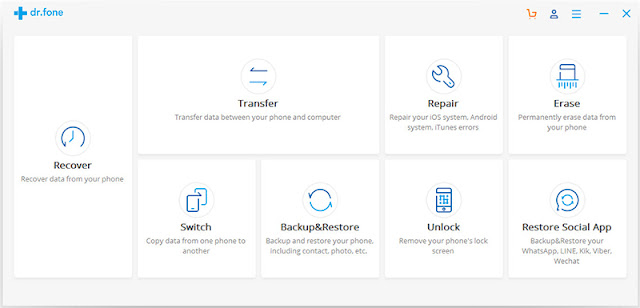
Step 1. Run the Android to Android transfer Tool

The first thing is to install and run dr.fone on your computer. When its primary window appears, click Switch to start transfer data.

Step 2. Get Both Android Devices Connected

Connect your two Android devices to the computer via USB cables. After recognized, your Android devices will be listed res on both sides of the window.
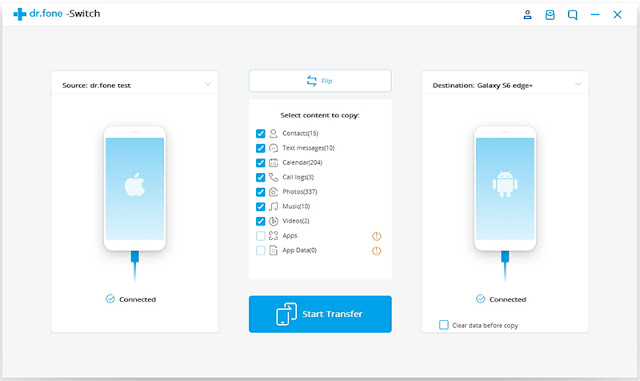

Step 3. Transfer Contacts, Photos, Videos, Music, SMS, Call Logs, Calendar and Apps from Android to Android

Between the two Android phones display all the contents you can transfer. You can uncheck any content you dislike to transfer. Then, click Start Transfer to transfer files from Android to anohter Android Phone quickly.
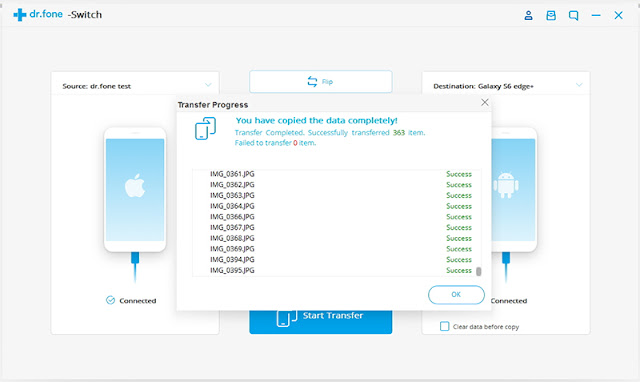


That's all. Isn't easy to transfer all your data from Android to Android. Try dr.fone - Switch free to transfer Android files to your new Android phone. It is the best Android to Android data transfer tool. With it, you can transfer everything from Android to Android.


See more:

Monday, April 12, 2021

How to Transfer Data from LG to New Android

[Summary]: from this article, we can learn useful ways to transfer data from LG to new Android. With a single click, all data such as contacts, photos, SMS, calendar, videos, call logs, music, apps, etc. can be transferred to the new Android.

This tutorial is for people who have just switched from LG to the new Android phone and want to find a shortcut to transfer all data from the original device to the new device. The two methods provided here cover most Android mobile phone users, such as Xiaomi, Huawei, old Samsung, LG, Nokia, oppo, vivo, etc. In addition, various data types including contacts, SMS, calendar, photos, music, videos, call logs, applications and more can be easily transferred from one device to another, regardless of the device's operating system. How do you do it? Let's find out.

Copy data from LG to new Android with one click

Android data switch helps users easily transfer data from LG to new Android, including Huawei, Motorola, millet, Samsung, Nokia, oppo, vivo, etc. It does well not only in transferring contacts and text messages, but also in media files such as music, photos, videos and other files. You can also transfer data from Android or Samsung to Android using different tools, for example. In the process, no advertisement bothers you. There are no plug-ins, so users don't have to worry about malware affecting your data. More importantly, when moving large files, its transmission speed is faster than Bluetooth.


How to Transfer Data from Android to Android

Step 1. Run the Android to Android transfer Tool

The first thing is to install and run dr.fone on your computer. When its primary window appears, click Switch to start transfer data.


Step 2. Get Both Android Devices Connected

Connect your two Android devices to the computer via USB cables. After recognized, your Android devices will be listed res on both sides of the window.


Step 3. Transfer Contacts, Photos, Videos, Music, SMS, Call Logs, Calendar and Apps from Android to Android

Between the two Android phones display all the contents you can transfer. You can uncheck any content you dislike to transfer. Then, click Start Transfer to transfer files from Android to anohter Android Phone quickly.


That's all. Isn't easy to transfer all your data from Android to Android. Try dr.fone - Switch free to transfer Android files to your new Android phone. It is the best Android to Android data transfer tool. With it, you can transfer everything from Android to Android.


See more:

Tuesday, March 16, 2021

How to Sync Data from Android to Samsung Galaxy Note 20

[Summary]: if you replace your old Android phone with Samsung Galaxy note 20, the first thing you want to do may be to transfer your contacts, SMS, pictures, videos, call logs, WhatsApp messages, etc. from your old Android phone to Samsung Galaxy note 20. Now, this article will show you the easiest way to implement it.

If you plan to switch from old Android devices, such as Xiaomi, Huawei, Samsung, LG, HTC, Sony, Nokia, oppo, etc., to the newly released Samsung Galaxy note 20, and want to know how to transfer data from old Android devices to Samsung Galaxy note 20. You're in the right place.

Copy data from Android to Samsung Galaxy note 20 with one click 

Android data switch helps users easily transfer data from Android to Samsung Galaxy note 20. It can transmit not only contacts and SMS, but also music, photos, videos and other media files. You can also use this tool to move data between different systems, such as transferring data from Android to iPhone or from IOS to Samsung Android. No advertising bothers you in the process. There are no plug-ins, so users don't have to worry about malware affecting your data. More importantly, when moving large files, its transmission speed is faster than Bluetooth. It is suitable for almost all Android, including: XIAOMI, Huawei, Samsung, LG, HTC, Sony, Nokia, oppo, etc.


How to Transfer Data from Android to Android

Step 1. Run the Android to Android transfer Tool

The first thing is to install and run dr.fone on your computer. When its primary window appears, click Switch to start transfer data.


Step 2. Get Both Android Devices Connected

Connect your two Android devices to the computer via USB cables. After recognized, your Android devices will be listed res on both sides of the window.


Step 3. Transfer Contacts, Photos, Videos, Music, SMS, Call Logs, Calendar and Apps from Android to Android

Between the two Android phones display all the contents you can transfer. You can uncheck any content you dislike to transfer. Then, click Start Transfer to transfer files from Android to anohter Android Phone quickly.


That's all. Isn't easy to transfer all your data from Android to Android. Try dr.fone - Switch free to transfer Android files to your new Android phone. It is the best Android to Android data transfer tool. With it, you can transfer everything from Android to Android.


See more:

Thursday, December 24, 2020

How to Transfer Data from Old Android to Samsung Galaxy S20

[Summary]: This article will discuss how to transfer data from Android to the new Samsung Galaxy S20. If you're going to switch to the Samsung Galaxy S20 without losing WhatsApp messages, photos, videos and other data stored on your phone, this tutorial is what you need.

The arrival of Samsung Galaxy S20 has been sought after by many Samsung users. If you're switching from an old Samsung device to a new Galaxy S20, the data on the old Samsung phone is definitely the last thing you want to give up. So how to transfer the old Android data to Samsung Galaxy S20? This page brings you a complete guide. You can use Android data switch to copy contacts, text messages, photos, videos, audio, call logs, WhatsApp messages and other data from the old Android to the new Samsung Galaxy S20.

Copy data from Android to Samsung Galaxy S20

Android data switch is the ultimate tool for data transmission, which is suitable for all kinds of data transmission from Android to Samsung Galaxy S20, S20 +, S20 ultra, and vice versa. All data types, including contacts, photos, videos, SMS, attachments, documents, call logs, etc., are transferable. You can download and try this phone for free to transfer synchronous data from Android, Samsung / HTC / LG / ZTE / Sony / vivo / oppo / Xiaomi / Huawei to Samsung Galaxy S20.


How to Transfer Data from Android to Android

Step 1. Run the Android to Android transfer Tool

The first thing is to install and run dr.fone on your computer. When its primary window appears, click Switch to start transfer data.


Step 2. Get Both Android Devices Connected

Connect your two Android devices to the computer via USB cables. After recognized, your Android devices will be listed res on both sides of the window.


Step 3. Transfer Contacts, Photos, Videos, Music, SMS, Call Logs, Calendar and Apps from Android to Android

Between the two Android phones display all the contents you can transfer. You can uncheck any content you dislike to transfer. Then, click Start Transfer to transfer files from Android to anohter Android Phone quickly.


That's all. Isn't easy to transfer all your data from Android to Android. Try dr.fone - Switch free to transfer Android files to your new Android phone. It is the best Android to Android data transfer tool. With it, you can transfer everything from Android to Android.

Wednesday, December 2, 2020

How to Transfer Data from Android to HUAWEI Mate 30/P40

[Summary]: looking for an Android data transmission tool that can copy the data of old mobile phones to Huawei? This guide teaches you a simple way to transfer data from HTC, Samsung, Nokia, Motorola, Sony, Google, Huawei, Motorola, ZTE, Xiaomi, oneplus, oppo and other Android phones to Huawei.

If you plan to switch from old Android devices such as Xiaomi, Huawei, Samsung, LG, HTC, Sony, Nokia, oppo, etc. to the newly released Huawei mate 30 or P40, and want to know how to transfer data from the old Android device to the new Huawei phone. You're in the right place.

One click synchronization of Android phone data to Huawei Mate 30 / P40

After our comprehensive consideration, the most recommended way is to use such a professional and efficient software: Android data switch software. This tool, which runs on windows and MAC systems, can help you easily transfer all the files you need from your old Android phone to your new Huawei phone. As a good assistant, whether you need to copy personal data or all types of data, you can do it perfectly. Contacts, messages, call logs, videos, calendars, audio and applications can be transferred from Android to Android, from Android to PC, from PC to Android, and even from IOS to Android. It's not only for Huawei, but also for apple, Samsung, HTC, LG, Sony, Google, Huawei, Motorola, ZTE, Nokia and more smartphones and tablets.


How to Transfer Data from Android to Android

Step 1. Run the Android to Android transfer Tool

The first thing is to install and run dr.fone on your computer. When its primary window appears, click Switch to start transfer data.


Step 2. Get Both Android Devices Connected

Connect your two Android devices to the computer via USB cables. After recognized, your Android devices will be listed res on both sides of the window.


Step 3. Transfer Contacts, Photos, Videos, Music, SMS, Call Logs, Calendar and Apps from Android to Android

Between the two Android phones display all the contents you can transfer. You can uncheck any content you dislike to transfer. Then, click Start Transfer to transfer files from Android to anohter Android Phone quickly.


That's all. Isn't easy to transfer all your data from Android to Android. Try dr.fone - Switch free to transfer Android files to your new Android phone. It is the best Android to Android data transfer tool. With it, you can transfer everything from Android to Android.

How to Recover Lost Data from iPhone XS

Summary: my worry is, if my iPhone XS loses data, how can I retrieve my lost data? We need to use a powerful and simple tool to do this. Thi...