Friday, November 27, 2020

How to Recover Lost SMS from Google Pixel

Summary: Google pixel accidentally deleted messages, do you want to retrieve them? This tutorial will provide you with simple steps, a few mouse clicks, to recover the lost SMS from Google pixel phone through Android data recovery.

Sometimes people lose text messages without knowing what they've done on Google pixel. Yes, it has become a common phenomenon for most people who use Google pixel or other mobile phones. As a result, more and more users are looking for the most effective way to recover SMS from Google pixel or other mobile phones on the Internet. Since you don't have any backup files available, it's almost impossible to retrieve lost files from Google pixel without a third-party tool. If you mistakenly delete, lose or format text messages on Google pixel, the best way to do this is to turn to professional Android data recovery software.

The most effective way to recover message from Google pixel

Android data recovery will help scan and delete lost or deleted data from Android phones or tablets. This smart Android data recovery feature not only supports the recovery of text messages lost by Google pixel, but also restores contacts, photos, videos, WhatsApp, call history and more types of Android data. In addition to what I mentioned above, it also supports recovery of Android lost data in any data environment, such as accidental deletion, Android OS update, factory reset, screen disconnection, BRD Android, lock screen, Android OS crash, etc. Compatible with all Android operating system versions, supporting Huawei, LG, Motorola, Lenovo, Samsung, Sony and other Android devices. Let's teach you step by step how to recover lost text messages from Google pixel.



Recover Data From Android by Android data Recovery

Step 1.Connect Android to Computer

Firstly please download Android Data Recovery,then launch it on your computer,run it and connect Android to PC using an USB.


Step 2.Open the USB Debugging on Android

Here is the right methods to open USB debugging on Android steps:

1) For Android 4.2 or newer: Enter “Settings”> Click “About Phone” > Tap “Build number” for several times until getting a note “You are under developer mode” > Back to “Settings” > Click “Developer options”> Check “USB debugging”

2) For Android 3.0 to 4.1: Enter “Settings” > Click “Developer options”> Check “USB debugging”

3) For Android 2.3 or earlier: Enter “Settings”> Click “Applications” > Click “Development”> Check “USB debugging”

4)For Android 5.0 or newer: Tap “Settings” > “About Phone” to tap “Build number” seven times for “You are now a developer!” signal.Then,move to “Settings” > “Developer options” to turn on “USB debugging”


Tips: For Android that base on Android 7.0/6.0 or above,just click OK on your phone to allow USB debugging,so the program can detect the phone.


Step 3.Select File Types You want to Recover from Android

The debugging process will enable easily detect your Android.Once your device is detected,the program will scan the device for all data,you need to select the files types from category,for example "Gallery", "Contacts", "Messages",Then click the "Next" button.


It will has a prompt on your phone as follow,tap "Allow" and permit the program to scan and analyze the selected files on your phone.


Step 4. Scan Android

Begin to scan and analyze data stored on your Android phone.


Step 5.Preview and Retrieve Lost Data from Android

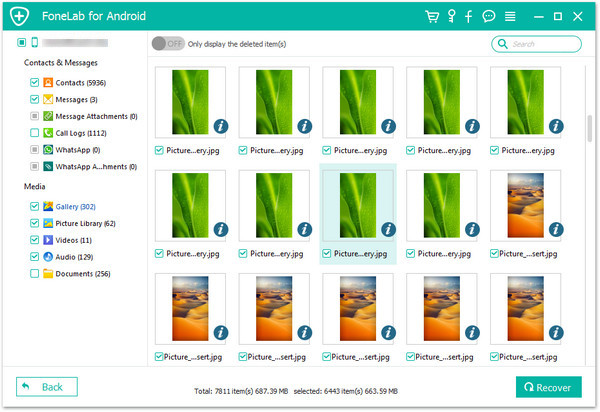
Once the scanning is completed,all data will be displayed in the list,including Media files: Gallery, Picture Library, Videos, Audio, Documents, App data; and text files: Contacts, Messages, Message Attachments, Call logs, WhatsApp & WhatsApp Attachments.Please select the file you want to recover and preview them in details.In the last step,just select the data you wanna recover and click "Recover" to save on computer.
Recover Deleted Photos from Android

In the scanning results,to recover Huawei photos and gallerys,please click "Gallery" and "Picture Library" item in the left of the classification to preview all the recoverable photos one by one,and then you can select out those missing photos you want quickly. "Only display deleted items"option to list the deleted files only. Finally, you can click "Recover" button to recover Huawei photos and save them on computer.


Selectively Recover Contacts on Android

The Android data recovery will scan your GS8 device. When scan is done, check "Contacts" to preview contacts in details,including Contact Name, Phone Number, Email,etc. Then mark which lost contacts or all contacts you want and click "Recover" to recover missing contacts back from your Huawei device,and all retrieved contacts will be saved on the computer as VCF, CSV or HTML for your use.


Recover Text Messages from Android

When scan is complete, you can preview all deleted text messages before recovering. Check "Messages" item to preview them one by one. You can read all conversations in the window, including name, date, contents, and time. After that, you can select the lost SMS on Huawei and recover them by click "Recover" button,only few seconeds,all of your SMS deleted will by extracted and saved on the computer as CSV, HTML format and attached images.


Regardless of whether you accidentally lost data from Android due to factory reset or other reasons,you need to have the safe and efficient way to get them back without any data loss,the Android Data Recovery is your best accessibility which used for data recovery.In additional,it allows you extract and recover lost data from broken Android with broken screen,black screen or other damaged situation.In additional,to avoding data lost or deleted on your Android phone or tablet,we recommend you backup data and restore to Huawei after factory reset with a Android data backup tool,which not only supports backup and restore contacts,sms,photos and more from Android on computer,but also enables you directly transfer data between iPhone and Android without data loss.



Thursday, November 26, 2020

How to Recover Deleted Messages from Motorola

"I got a new Motorola for my wedding anniversary. But last night, my mother used my mobile phone to make a phone call and accidentally deleted some messages on my mobile phone. Is there any way to recover deleted data from my new device without the need for complex processes? "

Although there are many chat applications that people use in daily life, such as wechat and WhatsApp, SMS is still a traditional way of communication for people to contact others, especially for the elderly. It's better to store it on the phone so that people can preview the content at any time. However, missing SMS on the device is a common case for most people due to deletion errors, factory recovery, device system updates or more. If a message is accidentally deleted, what should we do? This tutorial will share with you a wonderful way to recover deleted messages from Motorola phones in a few minutes.

Resume SMS deleted from Motorola

Thanks to the Android data recovery feature, you can easily restore Motorola's deleted SMS. Not only text messages, but contacts, photos, videos, call logs, documents and applications can be restored. In addition to the above-mentioned error deletion of data, there are many cases that may lead to data loss of Android phones. Virus attack, Android system update, device factory reset and other events. Android data recovery is applicable to most Android device brands, including Huawei, Samsung, HTC, Lenovo, Motorola, LG, Sony, ZTE, oneplus, etc.


Recover Data From Android by Android data Recovery

Step 1.Connect Android to Computer

Firstly please download Android Data Recovery,then launch it on your computer,run it and connect Android to PC using an USB.


Step 2.Open the USB Debugging on Android

Here is the right methods to open USB debugging on Android steps:

1) For Android 4.2 or newer: Enter “Settings”> Click “About Phone” > Tap “Build number” for several times until getting a note “You are under developer mode” > Back to “Settings” > Click “Developer options”> Check “USB debugging”

2) For Android 3.0 to 4.1: Enter “Settings” > Click “Developer options”> Check “USB debugging”

3) For Android 2.3 or earlier: Enter “Settings”> Click “Applications” > Click “Development”> Check “USB debugging”

4)For Android 5.0 or newer: Tap “Settings” > “About Phone” to tap “Build number” seven times for “You are now a developer!” signal.Then,move to “Settings” > “Developer options” to turn on “USB debugging”


Tips: For Android that base on Android 7.0/6.0 or above,just click OK on your phone to allow USB debugging,so the program can detect the phone.


Step 3.Select File Types You want to Recover from Android

The debugging process will enable easily detect your Android.Once your device is detected,the program will scan the device for all data,you need to select the files types from category,for example "Gallery", "Contacts", "Messages",Then click the "Next" button.


It will has a prompt on your phone as follow,tap "Allow" and permit the program to scan and analyze the selected files on your phone.


Step 4. Scan Android

Begin to scan and analyze data stored on your Android phone.


Step 5.Preview and Retrieve Lost Data from Android

Once the scanning is completed,all data will be displayed in the list,including Media files: Gallery, Picture Library, Videos, Audio, Documents, App data; and text files: Contacts, Messages, Message Attachments, Call logs, WhatsApp & WhatsApp Attachments.Please select the file you want to recover and preview them in details.In the last step,just select the data you wanna recover and click "Recover" to save on computer.
Recover Deleted Photos from Android

In the scanning results,to recover Huawei photos and gallerys,please click "Gallery" and "Picture Library" item in the left of the classification to preview all the recoverable photos one by one,and then you can select out those missing photos you want quickly. "Only display deleted items"option to list the deleted files only. Finally, you can click "Recover" button to recover Huawei photos and save them on computer.


Selectively Recover Contacts on Android

The Android data recovery will scan your GS8 device. When scan is done, check "Contacts" to preview contacts in details,including Contact Name, Phone Number, Email,etc. Then mark which lost contacts or all contacts you want and click "Recover" to recover missing contacts back from your Huawei device,and all retrieved contacts will be saved on the computer as VCF, CSV or HTML for your use.


Recover Text Messages from Android

When scan is complete, you can preview all deleted text messages before recovering. Check "Messages" item to preview them one by one. You can read all conversations in the window, including name, date, contents, and time. After that, you can select the lost SMS on Huawei and recover them by click "Recover" button,only few seconeds,all of your SMS deleted will by extracted and saved on the computer as CSV, HTML format and attached images.


Regardless of whether you accidentally lost data from Android due to factory reset or other reasons,you need to have the safe and efficient way to get them back without any data loss,the Android Data Recovery is your best accessibility which used for data recovery.In additional,it allows you extract and recover lost data from broken Android with broken screen,black screen or other damaged situation.In additional,to avoding data lost or deleted on your Android phone or tablet,we recommend you backup data and restore to Huawei after factory reset with a Android data backup tool,which not only supports backup and restore contacts,sms,photos and more from Android on computer,but also enables you directly transfer data between iPhone and Android without data loss.


How to Recover Deleted Photos from LG Phone

"Do you have a good idea to recover deleted photos from LG?" my phone jammed while playing games, so I reset it in the factory. However, I forgot to back up some important photos on my device. Who can give me some useful advice? Appreciate it. "

For most mobile phone users, losing photos from Android phones is a very common thing. Many people feel frustrated when they lose photos on their phones. We may lose photos on the device under different circumstances, such as deleting by mistake, restoring to factory reset, Android system restoring, Android system root directory, etc. Well, if you get the help of some professional tools, it is possible to recover the deleted data in LG. This tutorial will show you a useful data recovery Android that helps you recover deleted photos from LG with just a few clicks.

Restore deleted photos from LG mobile phone

Android data recovery tool can recover the photos deleted by LG, access the stored data, and selectively recover the deleted data on Android devices. In addition, Android data recovery function can recover several types of data, such as photos, videos, contacts, SMS, call logs, WhatsApp messages, notes, application data, etc. Android data recovery can recover deleted data in case of any data loss, such as error deletion, restore to factory reset, Android system recovery, Android system rooting, etc. Compatible Android models include oneplus, Samsung, HTC, oppo, Motorola, Lenovo, Huawei, Google pixel, millet, etc.


Recover Data From Android by Android data Recovery

Step 1.Connect Android to Computer

Firstly please download Android Data Recovery,then launch it on your computer,run it and connect Android to PC using an USB.


Step 2.Open the USB Debugging on Android

Here is the right methods to open USB debugging on Android steps:

1) For Android 4.2 or newer: Enter “Settings”> Click “About Phone” > Tap “Build number” for several times until getting a note “You are under developer mode” > Back to “Settings” > Click “Developer options”> Check “USB debugging”

2) For Android 3.0 to 4.1: Enter “Settings” > Click “Developer options”> Check “USB debugging”

3) For Android 2.3 or earlier: Enter “Settings”> Click “Applications” > Click “Development”> Check “USB debugging”

4)For Android 5.0 or newer: Tap “Settings” > “About Phone” to tap “Build number” seven times for “You are now a developer!” signal.Then,move to “Settings” > “Developer options” to turn on “USB debugging”


Tips: For Android that base on Android 7.0/6.0 or above,just click OK on your phone to allow USB debugging,so the program can detect the phone.


Step 3.Select File Types You want to Recover from Android

The debugging process will enable easily detect your Android.Once your device is detected,the program will scan the device for all data,you need to select the files types from category,for example "Gallery", "Contacts", "Messages",Then click the "Next" button.


It will has a prompt on your phone as follow,tap "Allow" and permit the program to scan and analyze the selected files on your phone.


Step 4. Scan Android

Begin to scan and analyze data stored on your Android phone.


Step 5.Preview and Retrieve Lost Data from Android

Once the scanning is completed,all data will be displayed in the list,including Media files: Gallery, Picture Library, Videos, Audio, Documents, App data; and text files: Contacts, Messages, Message Attachments, Call logs, WhatsApp & WhatsApp Attachments.Please select the file you want to recover and preview them in details.In the last step,just select the data you wanna recover and click "Recover" to save on computer.
Recover Deleted Photos from Android

In the scanning results,to recover Huawei photos and gallerys,please click "Gallery" and "Picture Library" item in the left of the classification to preview all the recoverable photos one by one,and then you can select out those missing photos you want quickly. "Only display deleted items"option to list the deleted files only. Finally, you can click "Recover" button to recover Huawei photos and save them on computer.


Selectively Recover Contacts on Android

The Android data recovery will scan your GS8 device. When scan is done, check "Contacts" to preview contacts in details,including Contact Name, Phone Number, Email,etc. Then mark which lost contacts or all contacts you want and click "Recover" to recover missing contacts back from your Huawei device,and all retrieved contacts will be saved on the computer as VCF, CSV or HTML for your use.


Recover Text Messages from Android

When scan is complete, you can preview all deleted text messages before recovering. Check "Messages" item to preview them one by one. You can read all conversations in the window, including name, date, contents, and time. After that, you can select the lost SMS on Huawei and recover them by click "Recover" button,only few seconeds,all of your SMS deleted will by extracted and saved on the computer as CSV, HTML format and attached images.


Regardless of whether you accidentally lost data from Android due to factory reset or other reasons,you need to have the safe and efficient way to get them back without any data loss,the Android Data Recovery is your best accessibility which used for data recovery.In additional,it allows you extract and recover lost data from broken Android with broken screen,black screen or other damaged situation.In additional,to avoding data lost or deleted on your Android phone or tablet,we recommend you backup data and restore to Huawei after factory reset with a Android data backup tool,which not only supports backup and restore contacts,sms,photos and more from Android on computer,but also enables you directly transfer data between iPhone and Android without data loss.


Wednesday, November 25, 2020

How to Transfer Data from old Android to New Android

"I prefer to take pictures on a mobile device than a digital camera. I keep a lot of photos on my Android phone. How do I sync all my photos to my new Huawei mate 30 with one button? Is it possible? Thank you. "

When you replace an old Android phone with a new one, the first thing you need to do is transfer the data from the old phone to the new one. After all, the old Android kept a lot of our precious data, such as photos, contacts and so on. These data play an important role in our daily life. In this article, I'll show you the detailed steps to transfer data between Android and the new Android (Samsung, Huawei, etc.).

Switch data between old Android and Samsung / oneplus / LG / Huawei / Google

Phone switch is highly recommended by mobile phone users because it can be easily transferred from one Android system to another without losing quality. For example, transferring files between Android and Samsung / oneplus / LG / Huawei / Google / Motorola / Xiaomi includes contacts, SMS, photos, videos, call logs, calendars, music and applications. It also allows you to back up and restore phone data and helps you completely delete data on your old phone. It supports mobile phone transfer of all Android models, such as Samsung Galaxy S20 / S11 / S10 / S9 / S8 note 20 / 10 / 9 / 8; HTC, LG, Lenovo, Motorola, Sony, Huawei, Google pixel, oneplus, ZTE, oppo, etc.

The Key Feature of Mobile Transfer Software:

1. Simple and effective solution for transferring content between Symbian, Android, and iPhone.

2. One-Click to backup any device music, photo, video, text messages, contacts, call history, calendars, app data to your computer.


3. Transfer saved backups to your new device. Supports backups created by other mobile managers, such as iTunes, iCloud, BlackBerry, Mobile and others.


4. Comprehensive contact copy, including job title, email addresses, company name, etc.


5. Works with more then 6,000+ phones including Android, Symbian (Nokia), and all models of iPhones, including the newest iPhone X, iPhone 8.


6. Transfers content between phones on different networks. AT&T, Verizon, Sprint, T-Mobile.


7. Zero quality loss & risk-free: everything you transfer is 100% same as the original and can be only read by yourself.


How to Transfer Data from Android to Android

Step 1. Launch Mobile Transfer and select transfer mode

Download, install and launch Mobile Transfer software on the computer. When you see the interface as below, select "Phone to Phone Transfer".


Step 2. Connect both Android to the Computer

Connect two Android mobile phones to your computer. The program will recognized and detected your devices automatically and show as source phone and Destination as below image. You can click "Flip" to change the place of two phones.


Step 3. Transfer Data from Android to Android

From the box in the middle items, you can choice and mark the data type which you want to transfer. Then click "Start Copy" button to start transferring data. Patiently waiting for the transfer process, and check the data that has been transmitted on your destination phone.


Not only transfer data from Android to Android, you can also follow the similar way to transfer your data between iOS and Android, and transfer files from Android to Symbian devices with ease.

How to Recover Data from Broken Samsung Galaxy S6/S5

[Summary]: Samsung mobile phone is broken / dead, black, locked or screen broken? This page will teach you how to extract and recover lost data broken or dead Samsung mobile phones like galaxy S6 / S5 / S4 to ensure your satisfaction.

Quite a few Samsung users want to root their phones, but some of them don't follow the correct root command, so unfortunately, they get a device that crashes. In fact, the failure of your Samsung Galaxy S6 / S5 mobile phone to use may also be due to other conditions, such as water damage, broken screen and no response, black screen, black screen crash, etc. You won't be able to access your data from damaged devices, such as contacts, text messages, photos, videos, music, call logs, apps and app data. How to retrieve lost data from broken / crashed Galaxy S6 / S5 mobile phone? Fortunately, we recommend a convenient and safe software for you.

Quick broken Samsung data recovery guide

Broken Android data extraction can help you easily recover all kinds of data in your broken Samsung mobile phone, such as videos, photos, call history, SMS, contacts, documents, WhatsApp data, etc. This program fully supports the black screen crash, system error, primary key does not work, download mode stuck, water damage and so on. Fully compatible with Samsung devices and other Android models, including Samsung Galaxy S6 / S5 / S4, Samsung Galaxy note 5 / 4 / 3, etc.


Recover Data From Android by Android data Recovery

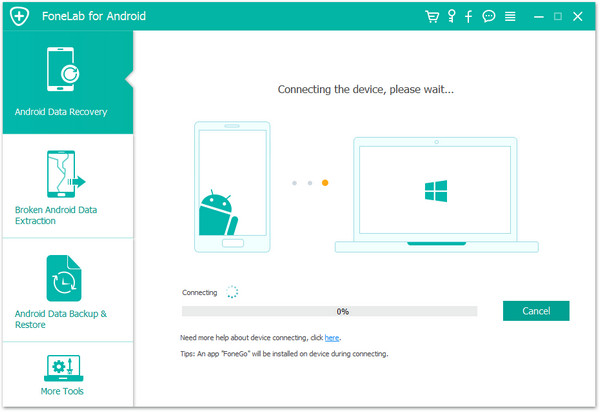
Step 1: First of all, free download and install the program on your computer with above link. Then the program will automatically launch when it is finished. Choose Broken Android Phone Data Extraction on the left of the interface.

Step 2: Connect your vivo phone to the computer with a USB cable. Click Start if your Android device stays in broken screen, black screen or non-responsive screen, you cannot enter password or cannot touch the screen. Otherwise click Fix Device if the system of your Android device is damaged, and you cannot operate it. Here you should choose Fix Device.


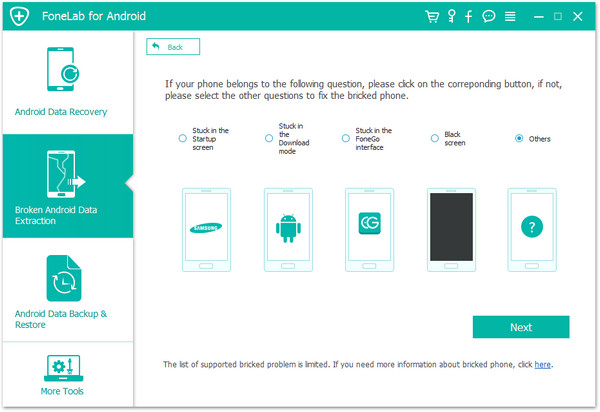
Step 3: Choose the situation that your phone is facing with: Stuck in Startup screen, Stuck in the Download mode, Stuck in the FoneGo interface, Black screen and so on. Click Next to move on.


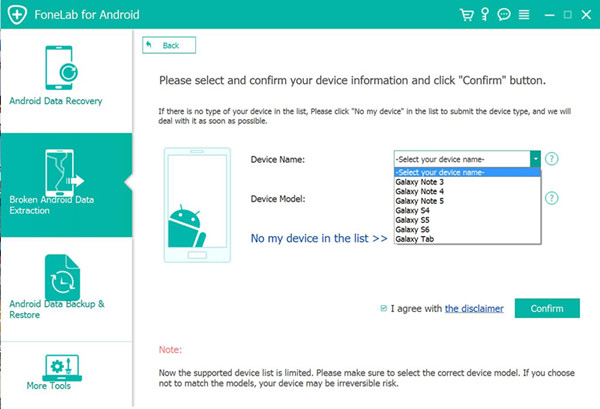
Step 4: Make sure that you choose the correct information of your Android device including the device name and device model. Then click Confirm to move on.


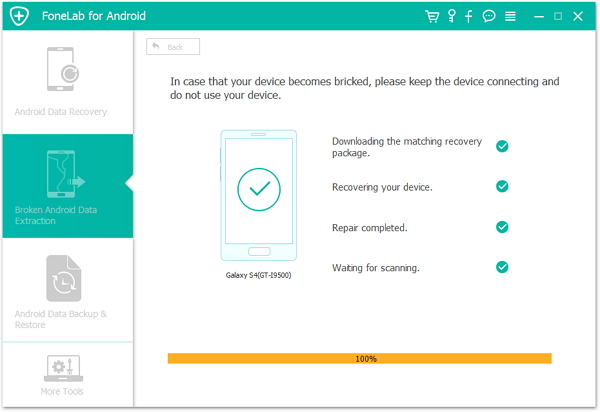
Step 5: The program will download recovery package and then repair the frozen Android system. After it is done, you can navigate to Android Data Recovery feature to access and scan your Android data, including the deleted files.


Step 6: Check Messages and Message Attachment on the left pane to view details and mark the items you want to recover and click Recover to save them onto your computer.


With the help of this software, you can get Android photos off a frozen phone, recover data from dead phone and so on. Why not get it on your PC now?


How to Recover Lost Data from iPhone XS

Summary: my worry is, if my iPhone XS loses data, how can I retrieve my lost data? We need to use a powerful and simple tool to do this. Thi...